

How to Automate Ad Spend Reconciliation in QuickBooks for Agencies

If your agency runs paid media for multiple clients, month-end reconciliation takes 10 to 15 hours. Not because the work is complicated. Because spend is co-mingled across shared cards and there's no automated way to sort it. This guide covers the exact setup that eliminates that.
Executive Summary
Manual ad spend reconciliation takes 10 to 15 hours per month due to data pulls, cross-referencing, and manual QuickBooks entry.
The root cause is co-mingled spend from shared cards, which forces manual sorting every month.
A dedicated virtual card per client, locked to specific platforms, eliminates co-mingling at the source.
Automated QuickBooks sync and real-time spend limits and alerts remove manual work and enable proactive budget control.
Direct answer: To automate ad spend reconciliation in QuickBooks for agencies, issue a dedicated virtual card for each client, lock each card to the ad platforms that client uses, set spend limits that match the client's monthly budget, and connect the cards to QuickBooks through an automated transaction sync. This structure ensures every charge is automatically attributed to the correct client, eliminating manual categorization and reducing month-end reconciliation from hours to minutes. Tools like Opal are built specifically for this workflow, offering unlimited free virtual cards, platform-level spend controls, and a native QuickBooks integration with no annual fee.
Why Manual Ad Spend Reconciliation Breaks Down at Agency Scale
Manual reconciliation is not just slow. It's structurally broken for agencies managing more than two or three clients, and the breakage compounds as you grow.
Most agencies run all client ad spend through one or two shared business cards. That means every month-end, someone has to sort through a single statement and figure out which charge belongs to which client, which campaign, and which platform. At five clients, that's annoying. At fifteen, it's a part-time job.
The Three Core Problems It Creates
1. Co-mingled spend
When Client A's Google Ads charges and Client B's Meta charges land on the same card statement, you have no automated way to separate them. Every line item requires a judgment call, and judgment calls require time. Miscoding a charge to the wrong client creates downstream billing errors that are costly to unwind.
2. Month-end delays
The reconciliation bottleneck doesn't just waste time; it delays your books. If your ops lead is spending the first week of every month sorting ad spend, your QuickBooks data is always running 5 to 7 days behind. That means financial reporting, client invoicing, and profitability analysis are all based on stale numbers.
3. No real-time visibility
Pulling a platform report tells you what was spent. It doesn't tell you what's left in the budget or whether a client is about to overspend before you catch it. By the time you notice a runaway campaign in your monthly reconciliation, the damage is already done.
Here's what that actually costs. Twelve hours of reconciliation at $75/hr is $900 a month. Over a year, that's more than $10,000 in ops labor spent purely on bookkeeping — not client work, not growth, just sorting charges.
How to Set Up Automated Ad Spend Tracking: Step by Step
The fix is structural, not a better spreadsheet. Here's the setup.
Step 1: Issue a Dedicated Virtual Card Per Client
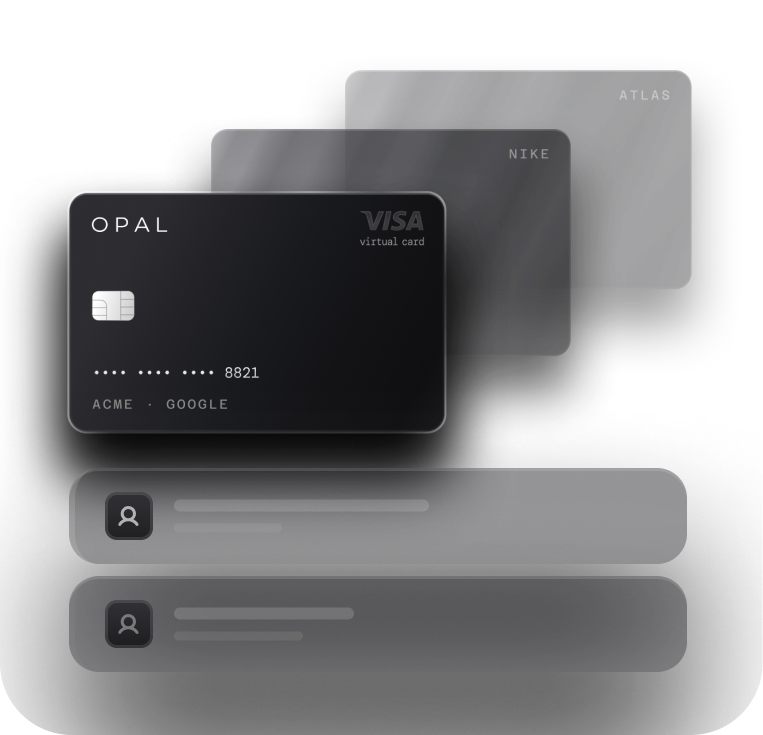
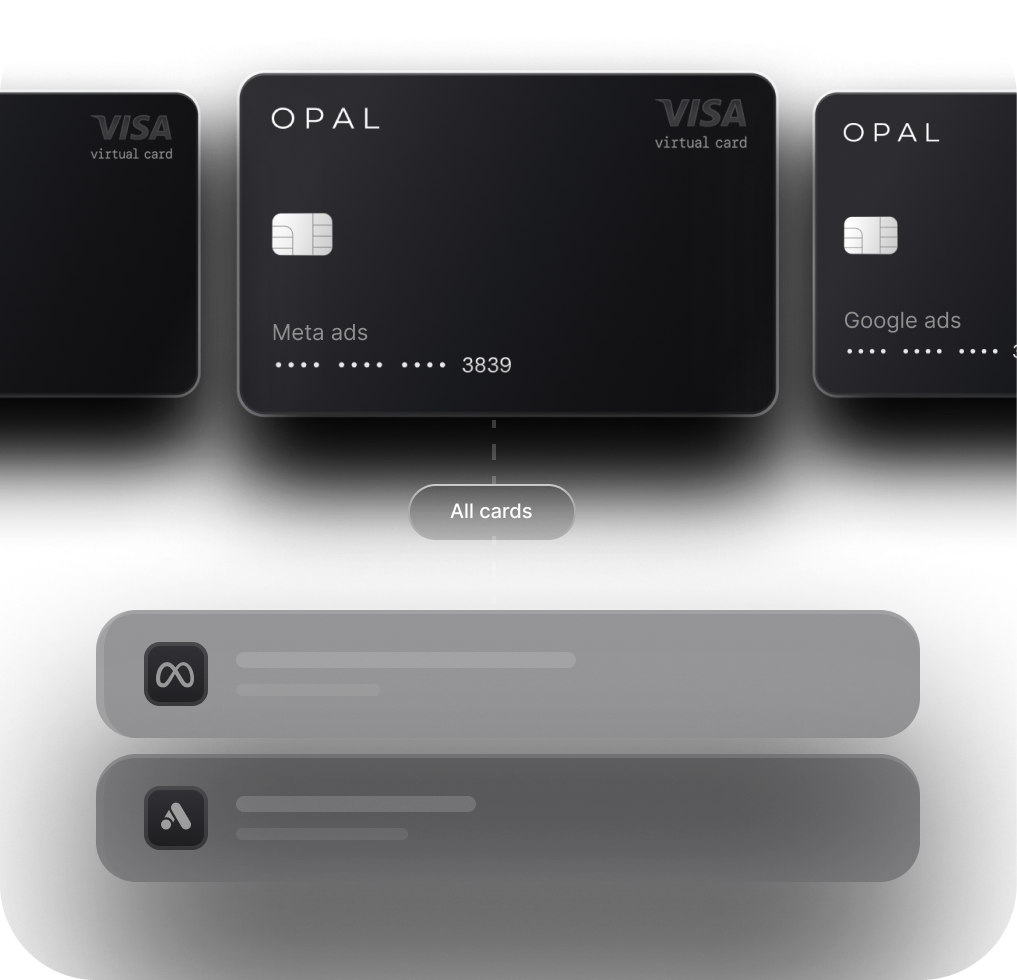
The foundation of automated reconciliation is the Client-Funded Card model: one virtual card per client, funded by that client's budget. When every charge for Client A goes on Client A's card and every charge for Client B goes on Client B's card, co-mingling is impossible by design.
With Opal, you can issue unlimited free virtual cards instantly. There's no per-card fee, no annual fee, and no personal guarantee required to get started. Name each card after the client it belongs to so the attribution is clear from the moment a transaction posts.
Step 2: Lock Each Card to Specific Ad Platforms
A virtual card that can be used anywhere still creates reconciliation risk. Locking each card to the specific platforms that client uses (Google Ads, Meta, TikTok, LinkedIn, Snapchat) means charges can only post from those merchants. This eliminates the possibility of accidental cross-client charges and makes every transaction self-explanatory.
Opal's platform-level controls let you restrict each card to specific ad networks, so the card issued for a client running Google and Meta campaigns simply cannot be charged by LinkedIn or TikTok.
Step 3: Set Spend Limits Per Card to Match Client Budgets
Once each card is locked to the right platforms, set a monthly spend limit that matches the client's approved ad budget. This turns budget management from a reactive process (catching overspend after it happens) into a proactive one (the card declines when the limit is hit).
You can set limits at the card level, the platform level, or both. If a client has a $10,000/month budget split across Google and Meta, you can set a $6,000 limit on the Google card and a $4,000 limit on the Meta card, and neither can exceed its allocation without your explicit approval.
Step 4: Connect to QuickBooks for Automatic Transaction Sync
This is where the reconciliation automation actually happens. When your virtual cards are connected to QuickBooks via Opal's native integration, every transaction syncs automatically as it posts. No manual exports, no CSV imports, no end-of-month data entry sessions.
Each transaction arrives in QuickBooks already tagged to the correct client (because it came from that client's dedicated card), with the merchant name, amount, and date. Your bookkeeper or accountant sees clean, categorized data in real time instead of a pile of unsorted charges at month-end.
Step 5: Run Real-Time Spend Reports by Client or Campaign
With transactions syncing automatically and each card mapped to a client, you can pull a real-time spend report at any point in the month. No waiting for platform reports. No cross-referencing. Just a live view of what each client has spent, what's left in their budget, and where the charges came from.
This also makes client reporting faster. When a client asks where their budget went, the answer is already in your dashboard, broken down by platform and date, not sitting in a spreadsheet you haven't built yet.
How to Track Client Ad Spend Across Platforms Without Manual Data Entry
The multi-platform problem is where manual reconciliation gets especially painful. A client running campaigns across Google Ads, Meta, TikTok, LinkedIn, and Snapchat generates charges from five different merchants, each with its own billing cycle, reporting format, and charge timing.
Here's how each platform is handled in the automated setup:
Platform |
Card Setup |
Spend Control |
|---|---|---|
|
Google Ads |
Dedicated virtual card per client, locked to Google billing |
Monthly spend limit matching approved budget |
|
Meta Ads |
Separate virtual card locked to Meta (Facebook + Instagram) |
Platform-level limit; alerts at threshold |
|
TikTok Ads |
Dedicated card locked to TikTok Business Center |
Limit set to campaign budget |
|
LinkedIn Ads |
Separate card locked to LinkedIn Campaign Manager |
Monthly cap with real-time tracking |
|
Snapchat Ads |
Dedicated card locked to Snapchat Ads Manager |
Spend limit with decline protection |
Because each platform has its own card, charges never cross between platforms. Every Google charge is on the Google card. Every Meta charge is on the Meta card. When those transactions sync to QuickBooks, they arrive pre-sorted by platform and client, with no manual categorization required.
The practical result: instead of pulling five separate platform reports and reconciling them against a shared card statement, you open QuickBooks and see every transaction already in the right place. The platform breakdown that used to take hours to assemble is built into the card structure from the start.
How to Manage Client Ad Budgets with Spend Limits and Real-Time Alerts
Budget management and reconciliation are two sides of the same problem. If you can't see spend in real time, you can't manage budgets proactively. And if budgets aren't controlled at the card level, reconciliation will always require manual cleanup.
Setting Spend Limits That Actually Enforce Budgets
A spend limit on a virtual card is a hard cap, not a suggestion. When a client's card hits its monthly limit, the card declines. The campaign pauses. No overage, no awkward client conversation, no credit dispute. This is fundamentally different from reviewing a statement at month-end and discovering a client went $3,000 over budget three weeks ago.
Opal lets you set limits at multiple levels:
-
Card-level limits: a total monthly cap per client card
-
Platform-level limits: separate caps for each ad network a client uses
-
Custom billing cycles: align limits to the client's billing period, not just the calendar month
Real-Time Alerts Before Problems Become Incidents
Spend limits prevent overspend, but alerts let you act before a limit is hit. You can configure threshold alerts (for example, notify when a client card reaches 80% of its monthly budget) so you have time to review performance, get client approval for additional spend, or pause campaigns strategically rather than having the card decline mid-flight.
This turns budget management from a reactive fire-drill into a planned process. The ops lead gets an alert, checks the dashboard, and makes a decision, all before the client even knows there was a question.
Before vs. After: What Reconciliation Actually Looks Like
To make the difference concrete, here's what the same month-end scenario looks like in both worlds. The agency in this example manages 10 clients across Google, Meta, and TikTok.
The Manual Process (Before)
It's the first week of the month. Your ops lead sits down to reconcile October's ad spend.
Pull 10 Google Ads reports, one per client. Export to CSV.
Pull 10 Meta reports. Export to CSV.
Pull 10 TikTok reports. Export to CSV.
Open the shared card statement. 300+ line items, all mixed together.
Match each charge to the correct client and platform. Flag anything that doesn't match a report.
Manually enter or import categorized data into QuickBooks.
Reconcile against client invoices. Chase down any discrepancies.
Time: 12 to 15 hours. Cost: $900 to $1,125 in ops labor (at $75/hr). Accuracy: dependent on the person doing it.
Any miscoding doesn't show up until a client questions an invoice or your accountant flags a discrepancy, sometimes weeks later.
The Automated Process (After, with Opal)
It's the first week of the month. Your ops lead checks the dashboard.
Open QuickBooks. Every October transaction is already synced, categorized by client and platform.
Review the spend summary. Each client card shows total spend, platform breakdown, and remaining budget.
Generate client reports directly from the dashboard.
Close the books.
Time: 30 to 60 minutes. Cost: under $100 in ops labor. Accuracy: automated.
"Opal has transformed how we manage finances. What used to take hours each week now happens automatically. The cashback alone has become a significant revenue stream, we're more profitable, more efficient, and our clients love the transparency." — Operations Lead, Outsmart Labs
Outsmart Labs, a performance marketing agency, reported saving over 15 hours per week after switching to Opal. That's not a rounding error. That's nearly a full-time position's worth of labor redirected from bookkeeping to billable work.
On top of the time savings, Opal's cashback of up to 2% on ad spend means the card itself generates revenue. An agency running $500,000 per month in client ad spend can earn up to $10,000 per month in cashback, automatically.
Who This Is For
This is built for agency owners who are tired of reconciliation eating into margin, ops leads who are the ones actually doing the work, and finance managers who need accurate QuickBooks data without a 5-day lag. Particularly relevant if you're managing 5+ clients, running multiple platforms per client, or billing on actual spend.
It's particularly well-suited to agencies that:
Manage 5 or more clients with separate ad budgets
Run campaigns across multiple platforms per client
Bill clients based on actual ad spend (where accuracy directly affects revenue)
Are growing fast enough that manual processes are already showing strain
The Bottom Line
Most agencies doing this manually aren't doing it because it works. They're doing it because nobody's shown them a better setup. The five-step process above doesn't require a new accounting system or a bigger team. It just requires issuing cards differently.
The five-step process outlined here, one card per client, locked to specific platforms, with spend limits enforced at the card level and transactions syncing automatically to QuickBooks, eliminates the structural causes of reconciliation complexity. It doesn't require a new accounting system or a bigger ops team. It requires a different card setup.
Opal is built for exactly this workflow: unlimited free virtual cards, platform-level spend controls, a native QuickBooks integration, up to 2% cashback on ad spend, no annual fee, and no personal guarantee. It's the financial infrastructure layer that performance marketing agencies have needed for a long time.
If your agency is spending more than a few hours a month on reconciliation, that time has a cost. The question is whether you want to keep paying it.
Frequently Asked Questions
How do agencies automate ad spend reconciliation?
Agencies automate ad spend reconciliation by issuing a dedicated virtual card for each client, locking each card to the ad platforms that client uses, and connecting those cards to QuickBooks through an automated transaction sync. This structure eliminates co-mingled spend by design: every charge is automatically attributed to the correct client and platform the moment it posts, with no manual categorization required. Tools like Opal are built for this workflow, combining unlimited free virtual cards, platform-level spend controls, and a native QuickBooks integration.
How do I track client ad spend in QuickBooks?
To track client ad spend in QuickBooks without manual data entry, issue a dedicated virtual card for each client and connect it to QuickBooks via an automated sync. When each client's charges post to their own card, they arrive in QuickBooks already tagged to the correct client, with the merchant name, amount, and date. This eliminates the need to manually import or categorize platform charges and gives you a real-time view of each client's spend directly in QuickBooks.
How do agencies manage client ad budgets across multiple platforms?
Agencies manage client ad budgets across platforms using separate virtual cards per platform (Google Ads, Meta, TikTok), each tied to an approved spend allocation. Each card enforces its limit automatically — once reached, it declines and stops spend instantly. Real-time alerts trigger before thresholds are hit, shifting budget control from reactive cleanup to proactive decisions.
What is the best way to automate ad spend bookkeeping?
The most effective way to automate ad spend bookkeeping is to use a dedicated virtual card per client, locked to specific ad platforms, with a native QuickBooks integration that syncs transactions automatically. This approach eliminates the three root causes of manual bookkeeping: co-mingled spend (fixed by one card per client), manual data entry (fixed by automated sync), and delayed visibility (fixed by real-time transaction posting). Opal is purpose-built for this use case, offering unlimited free virtual cards, platform-level controls, QuickBooks auto-sync, and up to 2% cashback on ad spend with no annual fee.
How much time do agencies spend on manual reconciliation?
Most performance marketing agencies spend 10 to 15 hours per month on manual ad spend reconciliation, including pulling platform reports, cross-referencing charges against card statements, categorizing transactions by client, and entering data into QuickBooks. At a fully-loaded ops rate of $75 per hour, that's $900 to $1,125 per month in internal labor cost, or over $10,000 per year, spent purely on bookkeeping. Outsmart Labs, a performance marketing agency, reported saving over 15 hours per week after switching to Opal's automated reconciliation workflow.