

Virtual Cards for Ad Spend: How Agencies and Media Buyers Should Set Them Up

.webp)
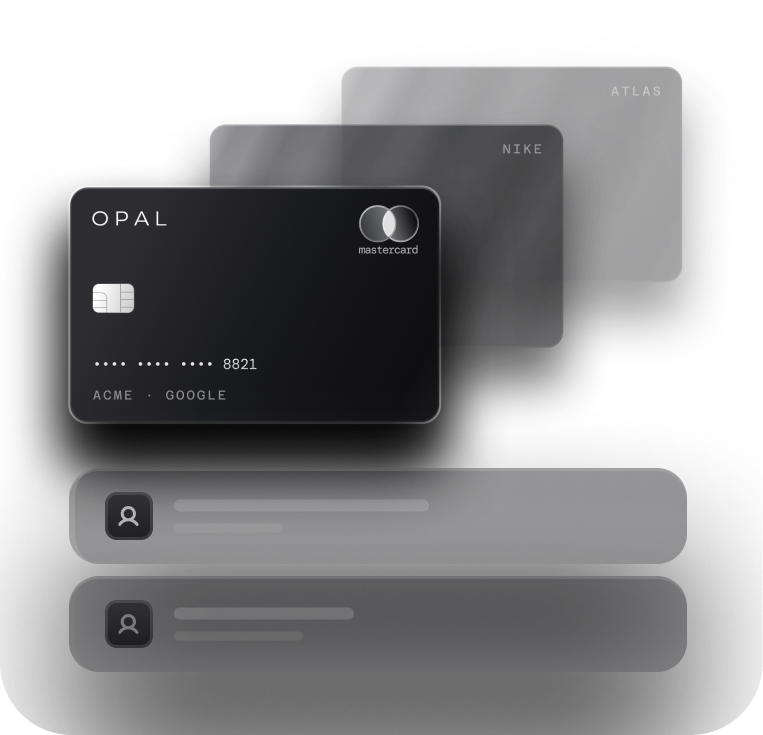
A virtual card for ad spend is a separate card number issued for one advertising job, such as a single client's Meta Ads account. Each platform charges the card on file, and if the issuer declines that charge, the platform typically pauses delivery for every account funded by that card.
The fix is structural: one card per ad account, a consistent naming pattern, a limit sized to the approved budget, and a clear policy for freezing or retiring cards when a client pauses or offboards.
This guide covers how to set that up across Meta, Google, and other platforms. Opal provides virtual cards on the Opal Card, a pay-in-full charge card for U.S.-based businesses, so the setup below assumes you control your own card structure.
Key Takeaways
Each virtual card should pay for exactly 1 ad account, because a card that pays for 2 accounts cannot be frozen for one client without stopping the other.
Choose the card axis (client, platform, campaign, or buyer) by asking who answers for the budget, then let every card bottom out at a single ad account.
A fixed naming pattern of client code, platform, account ID, scope, and owner lets finance read a transaction export without asking the media team.
Size each card limit at the approved budget plus 1 billing threshold charge, and keep the platform's own cap, such as Meta's account spending limit, below it.
Freezing a card does not stop ad delivery, so pause campaigns in the platform first and freeze or archive the card only after the final charge posts.
What Should Every Ad Spend Card Have Before You Issue It?
Every ad card needs six things documented before money is spent: what it pays for, what it is named, who owns it, what its limit is, what merchant it accepts, and when it expires.
Most teams issue cards first and document later. By month-end, the statement is full of numbers with no owner and no explanation.
Write a Six-Field Spec for Each Card
In the spec sheet where you track client budgets, add one row per card with these six fields:
-
Scope: the one ad account the card pays for.
-
Name: the card's label, built from the pattern in the naming section below.
-
Owner: the person who answers for its charges, usually the buyer.
-
Limit and period: the amount and whether it resets daily, weekly, monthly, or never.
-
Restriction: the merchant the card should accept charges from.
-
End condition: the event that retires the card, such as a flight ending.
Keep One Ad Account Behind Every Card
A card on file for 2 ad accounts ties their fates together. If you lower the limit to slow one client, the other client's charges can decline too, and the platform pauses delivery on both accounts. Pairing one card with one account also means every charge already tells you whose money it was.
How Should You Structure Virtual Cards for Ad Spend?
Structure your cards around whoever answers for the budget, then split further only until each card covers a single ad account. The axis decides which question a card's transaction history can answer without extra work.
Pick the Axis That Matches Budget Ownership
Client is the natural first cut, because clients approve and pay for media. The table compares the 4 axes on what each one is good for.
|
Card axis |
Use it when |
Limit equals |
What it answers on its own |
|---|---|---|---|
Per client |
Each client approves one total media budget |
The client's approved spend for the period |
How much did this client cost us this month? |
Per platform |
A client approves separate budgets for Meta, Google, or TikTok |
The approved budget for that platform |
Which channel is ahead of plan? |
Per campaign |
A launch, flight, or test has its own fixed budget and end date |
The total budget for the flight |
Did this flight stay inside its budget? |
Per buyer |
A buyer manages a pool of spend across small accounts |
The buyer's approved allocation |
How much spend is this person directing? |
Combine Axes Without Card Sprawl
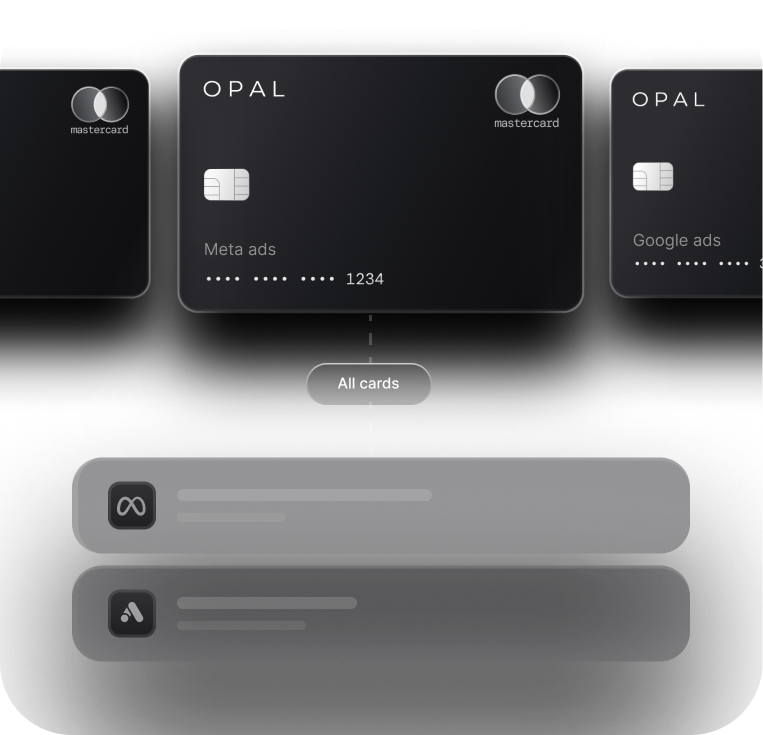
For virtual cards for agencies, the default that holds up best is client by platform: one card for each client, platform, and ad account.
Layer a campaign card on top only when a flight has its own approved budget, and record the buyer in the owner field rather than issuing buyer cards by reflex.
With unlimited virtual cards, the real limit is how many cards your team can keep named, owned, and reviewed. Our card structure models post covers the trade-offs of each model in more depth.
How Do You Name Cards That Finance Can Read?
Name every card with the same 5 fields in the same order, so the name alone tells finance which client, platform, account, scope, and person a charge belongs to. A naming pattern does the work a spreadsheet lookup would otherwise do every month.
Use a Fixed Field Order
Build each name as CLIENT-PLATFORM-ACCOUNT-SCOPE-OWNER. A card named NORTHWIND-META-4417-ALWAYSON-JR pays for Northwind's Meta ad account ending in 4417, covers always-on spend, and belongs to the buyer with the initials JR. NORTHWIND-GADS-2290-SPRINGLAUNCH-MK covers one Google Ads flight for the same client, owned by another buyer.
Set Rules the Whole Team Follows
A pattern only works if nobody improvises. These rules keep names consistent as your client list grows:
Use the client code that already exists in your accounting system, so card names and ledger entries match.
Write names in capitals with hyphens and no spaces, so they stay readable in exports and spreadsheets.
Use the last 4 digits of the platform's ad account ID, not the account's display name, which clients can change.
Never rename a card that already has charges. Retire it and issue a new one, so old transactions keep their original label.
Never reuse a retired name, even for the same client and account.
How Large Should Each Card Limit Be?
Set each card limit to the approved budget for its period plus one billing charge of headroom, and keep the platform's own spending cap inside that limit. The card limit then works as a backstop, while the platform cap does the everyday stopping.
Match the Limit Period to How Budget Gets Approved
A monthly retainer needs a monthly limit that resets with the month. A fixed flight or test needs a total limit that never resets, so the card simply stops once the flight's budget is gone. Daily or weekly limits suit buyers testing new accounts, but they can starve a campaign that is pacing correctly toward a monthly number.
Add One Billing Charge as Headroom
Platforms that bill by threshold charge your card after the spend that triggered the charge, so a charge for the last days of one month can post in the next.
Say a client approves $30,000 a month on Meta and the account's current billing threshold is $5,000. Set the card's monthly limit at $35,000, which covers the approved spend plus one threshold charge arriving late.
Our guide to Meta billing thresholds explains how that threshold rises over time, so revisit the headroom whenever it changes.
How Do You Attach a Virtual Card for Meta Ads and Google Ads?
Add each card to the ad account named in its spec, then use each platform's own tools to stop spend before the card limit has to. Meta and Google offer different tools, so the setup differs by platform.
Set Up the Virtual Card for Meta Ads
After you add the card, set an account spending limit in Ads Manager at the client's approved budget. Meta's guide to resetting the amount spent explains that the limit covers all campaigns over the account's lifetime, pauses ads once it is reached, and only an ad account admin can reset it.
A reset takes about 15 minutes, and some accounts offer an automatic reset on the 1st of every month, which turns the lifetime cap into a monthly one.
Accounts set up for available funds cannot use an account spending limit at all, so record that exception in the card's spec.
Add a Backup Card in Google Ads
For virtual cards for Google Ads, issue a second card for the same ad account and give it a small limit, roughly one billing charge.
Google's page on backup payment method setup says Google automatically tries the backup when the primary payment fails, that only credit or debit cards qualify where available, and that each account can hold 1 backup at a time.
Name it with the same pattern and a BACKUP scope. It covers a primary card that hits its limit, though it cannot help when a problem affects every card on your account, such as a missed statement payment.
When Should You Freeze, Lower, or Retire a Card?
Freeze a card when charges must stop right away, lower its limit when spend should slow, and retire it when its end condition arrives.
In every case, change the campaign in the platform first, because a card action alone leaves ads running until a charge declines.
Change the Platform Before the Card
A frozen card does not stop delivery. The platform keeps spending, attempts a charge that declines, and then pauses or restricts the account on its own schedule. The table below sets the order of operations for the situations that come up most.
|
Situation |
First, in the platform |
Then, on the card |
|---|---|---|
Client pauses a campaign for a week |
Pause the campaigns |
Leave the card active so trailing charges clear |
Card number may be exposed |
Add a replacement card as the payment method |
Freeze the old card at once |
Client stops paying invoices |
Pause delivery |
Let the final charge post, then freeze |
Buyer leaves the team |
Remove their platform access |
Reassign the owner field, or retire buyer cards |
Flight ends or client offboards |
Turn off campaigns and remove the card |
Archive the card after the last charge posts |
Retire Cards on a Trigger
Cards with no end condition pile up, and an old active card is exposure nobody watches. Review every card monthly and archive any card whose end condition has passed or that has shown no charges for 60 days. Our post on media buyer permissions covers the access side of offboarding.
How Do You Reconcile Ad Spend Card by Card?
Reconcile each card against the billing records of the single ad account in its spec, then roll the cards up by client code. Because every card maps to one account, a mismatch points to one place instead of a whole statement.
Match Each Card to One Billing Record
Each month, compare the card's posted charges with that ad account's payment history, such as Payment activity in Meta's billing settings.
Flag 3 exceptions for review: a charge from a merchant the card was not issued for, a charge with no matching entry in the ad account, and an account showing payments that never reached the card. If you set a merchant restriction, our merchant lock rules post explains what it can and cannot catch.
Close the Month by Client Code
Export transactions by card, group them by the client code at the front of each name, and compare each total with what you invoiced that client. The month-end reconciliation checklist walks through accruals and timing gaps once the card totals agree.
Set Up Your Ad Spend Card Controls With Opal
We built Opal for agencies, brands, and media buyers who pay ad platforms by card and want every card set up the way this guide describes. You configure the structure, names, owners, and limits, and we provide and run the platform behind them.
What We Provide
Every Opal account comes with unlimited virtual cards for free, and you can set a spending limit, an expiration date, and merchant restrictions on each one individually.
Our ad spend card controls also cover approvals and employee permissions, and you can see every transaction in real time, export it, or sync it to QuickBooks or Workday.
Eligible ad spend returns uncapped cashback: 1% on credit accounts and up to 1.5% on pre-funded accounts, with your rate confirmed at approval.
You pay no annual or subscription fee, sign no personal guarantee, and face no hard credit check.
What to Know Before You Apply
The Opal Card must be paid in full, so each monthly statement is debited from your Opal Balance or bank account.
When that debit fails, Opal can lock the card until you repay the balance. Cards work only with supported advertising and media platforms, and we serve U.S.-based businesses.
Ad Pay is a separate waitlisted product for Meta and Google invoices, with a 3% processing fee when they are paid on Opal credit.
The application form takes about 2 to 3 minutes, and most teams have their first cards within 24 to 48 hours of applying. To get started, see Opal for agencies and apply.
Frequently Asked Questions (FAQs)
How Many Virtual Cards Does Each Client Need?
Each client usually needs one virtual card per ad account, plus a small backup card for any Google Ads account that needs one. Add a campaign card only when a flight has its own approved budget. A client with 5 accounts across Meta, Google, and TikTok therefore usually needs 5 or 6 cards.
Can I Use One Virtual Card for Meta Ads and Google Ads?
You can, but it is a weak setup. A single card across Meta Ads and Google Ads shares one limit, so a charge on one platform can push the other into a decline and pause delivery. Separate cards let you freeze, lower, or reconcile each platform without touching the other one.
What Limit Should a Virtual Card for Meta Ads Have?
A virtual card for Meta Ads should carry the approved budget for its period plus one billing threshold charge as headroom. For a $30,000 monthly budget with a $5,000 threshold, that means a $35,000 monthly limit. Set Meta's account spending limit at $30,000, so Meta pauses the ads before the card declines.
Does Freezing a Virtual Card Pause My Ads?
No. Freezing a card stops new charges from clearing, but the ad platform keeps delivering until a charge declines and it pauses or restricts the account on its own timing. Pause the campaigns in the platform first, let any final charge post, and then freeze the card so the account stays in good standing.
Should Each Media Buyer Get Their Own Card?
Virtual cards for media buyers make sense when a buyer controls a pool of spend that no single client approved, such as test accounts. Otherwise, issue cards by client and ad account and record the buyer as the card's owner. That keeps one person accountable without doubling the cards finance has to reconcile.
What Do Unlimited Virtual Cards Cost on Opal?
Unlimited virtual cards cost nothing on Opal, and there is no annual fee or subscription fee. Cashback on eligible ad spend has no cap, at 1% for credit accounts and up to 1.5% for pre-funded ones. Ad Pay, the separate invoice-payment product, carries a 3% processing fee.
5 Best Virtual Business Cards for Ad Spend in 2026

Virtual Cards for Business: What They Are and How They Work
The Best Virtual Card for TikTok Ads: How to Test One Before You Commit