

Google Ads Payment Declined: Every Reason and Fix

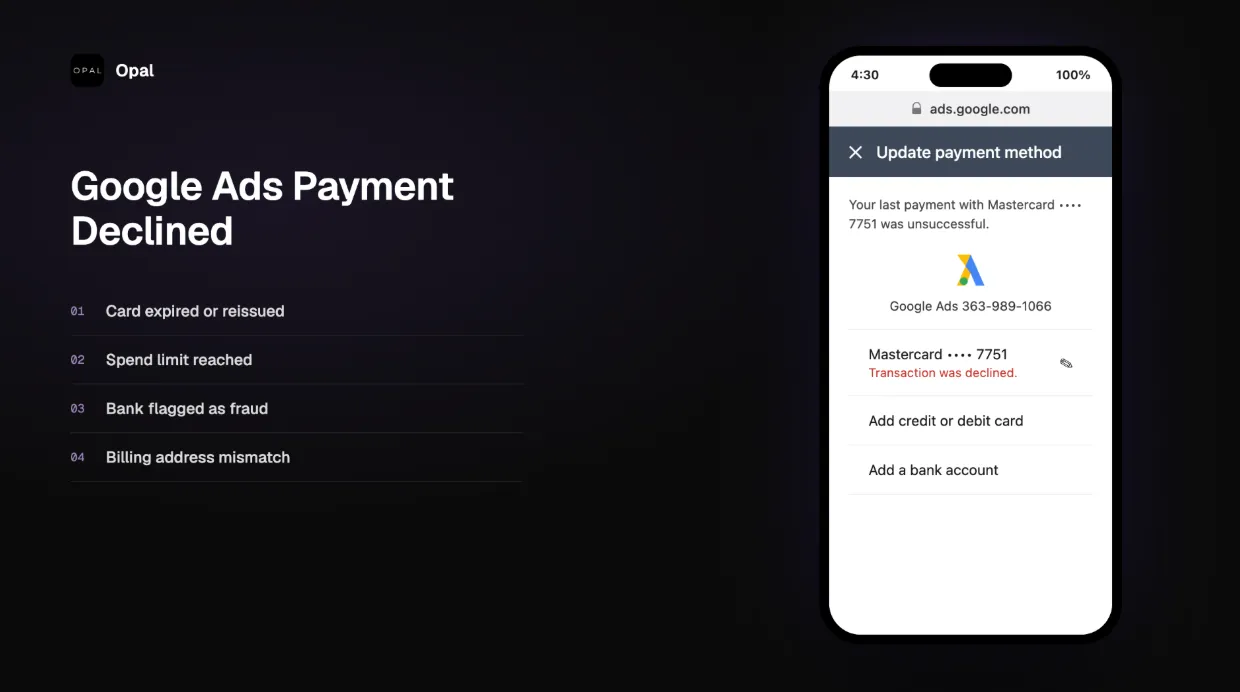
If you are seeing a "your payment was declined" message in Google Ads, your campaigns may already be paused. Google does not wait long before restricting spend when a billing charge fails, and every hour your ads are down is revenue you are not recovering.
Most Google Ads payment declines are fixable within minutes once you know where to look. The problem is that the error message Google shows is often vague. "Your payment was declined" tells you something went wrong. It does not tell you whether the issue is with your bank, your card, your billing profile, your spending threshold, or your account status.
This guide covers every reason a Google Ads payment gets declined and gives you the exact steps to fix each one. Work through the relevant section, resolve the underlying issue, and get your campaigns back live.
Act fast. Repeated failed payments can eventually contribute to billing restrictions or, in some cases, account suspension. The sooner you diagnose the cause, the less damage it does.
Key Takeaways
Most Google Ads payment declines originate from bank blocks, fraud detection triggers, expired cards, insufficient credit limits, billing verification holds, or payment profile errors.
Google Ads may pause campaigns, restrict new spend, or issue account warnings as soon as a payment fails.
A good first step is to open Google Ads billing settings, identify the exact error, then check the card, bank, payment profile, and account status in that order.
Virtual cards can reduce future declines by isolating Google Ads spend, setting custom limits, and making it easy to swap a blocked card without disrupting other accounts.
Advertisers should keep at least one backup payment method active, monitor billing thresholds, and maintain a verified payment profile at all times.
Why Google Ads Payments Get Declined
A Google Ads payment failure is not always the same problem. The decline can originate from six different places, and confusing them wastes time.
The six sources of Google Ads payment failures
Source |
What it means |
|---|---|
Bank or card issuer |
Your bank blocked or rejected the charge |
Fraud detection |
Your bank's or Google's system flagged the transaction |
Card issue |
Expired, replaced, or wrong billing details |
Credit or limit issue |
Insufficient available credit or transaction cap hit |
Google billing system |
Payment profile error, threshold charge, or verification hold |
Account compliance |
Suspension, unpaid balance, or policy issue |
Each source has a different fix. The sections below address each one in detail. Start with whichever matches the error message you see in your Google Ads billing settings, or work through them in order if the error is unclear.
Bank Decline
One of the most common reasons for a Google Ads payment declined error has nothing to do with Google. Your bank blocked the charge.
Banks flag Google Ads transactions for several reasons. Google Ads charges may appear from billing entities or payment processors that banks don't immediately recognize. To a fraud prevention system, that combination can look suspicious, even when the spend is completely legitimate.
According to Google's own billing documentation, payment failures caused by the card issuer are among the most frequently reported billing issues in Google Ads accounts.
Common bank-side reasons for a declined Google Ads payment
The bank does not recognize Google Ads as an approved merchant
The card is restricted from international or online transactions
The merchant category code (MCC) for digital advertising is blocked
The transaction volume is higher than your typical activity
The card is not enabled for recurring billing or digital ad spend
A real example: you scale a campaign from $5,000 to $25,000 in a week. Your bank sees a sudden large charge from an unfamiliar processor and blocks it. Your ads stop. Google did not cause the decline. Your bank did.
How to fix a bank-side Google Ads payment decline
Call your bank or card issuer directly and ask why the charge was blocked.
Confirm that Google Ads (and its billing processors) are approved merchants on your account.
Ask whether your card has restrictions on online transactions, recurring billing, or advertising-related merchant categories.
Request that the bank whitelist Google Ads charges going forward.
Once the bank confirms approval, return to Google Ads billing and retry the payment manually.
Fraud Detection
Fraud detection systems at your bank or card network can trigger a Google Ads payment failure even when the charge is legitimate. These systems look for patterns that match fraudulent activity, and Google Ads billing has several characteristics that can trip those filters.
What triggers fraud flags on Google Ads charges
Recurring charges from a processor the card has not used before
A sudden spike in transaction size (scaling ad spend quickly)
High-frequency charges within a short window (Google can bill multiple times per day when thresholds are hit)
International payment routing
Charges at unusual times or from unfamiliar billing entities
The frustrating part: your card may work fine for everything else, but Google Ads specifically keeps getting blocked. That is usually a sign that the billing pattern, not the merchant, is triggering the flag.
How to fix a fraud-triggered Google Ads payment decline
Contact your bank and verify the specific transaction that was flagged. Ask them to release the block and approve future Google Ads charges.
Use a dedicated card for Google Ads spend. When a single card is used only for ad spend, the recurring pattern becomes predictable and can help reduce fraud-related declines.
Avoid sudden large billing jumps when possible. If you plan to scale spend, notify your bank in advance and confirm the card limit can accommodate the increase.
Set spend alerts on your card so you know when a charge is attempted and can respond quickly if it is blocked.
Key insight: A dedicated card for Google Ads does more than reduce fraud flags. It also makes it much easier to identify when a charge fails, since that card is for a specific use case.
Expired Card
An expired card is one of the most common and easily overlooked causes of a Google Ads payment failure. The problem is that advertisers often do not realize the card on file has expired, especially when a bank issues a replacement card with a new number or expiration date.
Google Ads does not automatically update card details when your bank reissues a card. If your card was replaced, renewed, or reissued with a new number, the old card details in Google Ads will fail the next time a charge is attempted.
Why this happens more often than you would expect
Banks issue replacement cards before the old card expires, often with a new card number
The physical card in your wallet may look current while Google Ads still has the old number
Billing address changes can also cause a card to fail even if the expiration date is valid
Autopay setups on Google Ads can run for months without anyone checking the card details
How to fix an expired card Google Ads payment failure
-
Go to Google Ads > Billing > Payment methods and check the expiration date on the card currently on file.
If the card is expired or has been replaced, add the new card details as a new payment method.
Remove or archive any outdated cards to avoid confusion.
Confirm the billing address on the new card matches exactly what your bank has on file.
Set the new card as your primary payment method, then retry the failed payment.
Do not assume the card is current. Check the expiration date in Google Ads directly, not just in your wallet.
Insufficient Limit
Your card may be valid and your bank may not have blocked the charge, but the payment still fails because there is not enough available credit or the transaction exceeds a limit on the card.
Google Ads billing does not always charge in one predictable amount. Depending on your billing settings and how fast your campaigns spend, Google may charge multiple times in a single day when your account hits its billing threshold. Each of those charges needs to clear the card's available limit.
Types of limits that cause Google Ads payment declines
-
Insufficient available credit: The card does not have enough remaining balance to cover the charge
-
Daily transaction limit: Some cards cap the total amount that can be charged in a single day
-
Monthly spend limit: The card has a monthly ceiling that has already been reached
-
Per-transaction cap: Some cards decline any single charge above a set dollar amount, regardless of available balance
This is a particularly common issue for fast-growing accounts. A campaign that was spending $10,000 per month in January may be spending $80,000 per month by Q3. If the card limit was set at $20,000 and never updated, the threshold charges will start failing.
How to fix an insufficient limit Google Ads payment failure
Contact your card issuer and request a credit limit increase to cover your current and projected ad spend.
Ask about daily and per-transaction limits specifically. Overall credit limit and per-transaction limits are different settings.
If a limit increase is not available quickly, switch to a card with a higher spend ceiling while you resolve the limit issue.
Plan your ad spend around Google's billing threshold schedule so you are not surprised by large charges hitting at the same time.
Account Suspension
Sometimes a Google Ads payment declined error is not really a payment problem. It is a symptom of an account-level issue that is blocking billing entirely.
Google can suspend an account for billing-related reasons, and when that happens, no payment method will work until the underlying issue is resolved. Adding a new card will not fix it. Retrying the payment will not fix it. The suspension itself must be addressed first.
Billing-related reasons Google Ads suspends accounts
Suspicious payment activity detected on the account
An outstanding unpaid balance from a previous billing cycle
Repeated failed payment attempts over a short period
Mismatched billing information between the payment method and the account
Failure to complete identity or business verification when requested
Policy violations that trigger a billing hold
How to fix a suspension-related Google Ads payment failure
Open the suspension notice in your Google Ads account. Read it carefully. It will specify the reason for suspension.
If there is an unpaid balance, pay it immediately using a valid payment method. This is usually the fastest path to reinstatement.
If Google requested verification, complete it before doing anything else. Verification is a prerequisite, not optional.
Correct any mismatched billing information, including the name, address, and tax details on the account.
Submit an appeal only after the billing issue is fully resolved. Appealing before fixing the root cause will not succeed and may delay reinstatement.
Important: If your account is suspended, contact Google Ads support directly through the account. Do not attempt to create a new Google Ads account to bypass the suspension. Google detects this and it will make the situation significantly worse.
Billing Verification
Google increasingly requires advertisers to complete verification before billing works normally. If your account has an unresolved verification requirement, payments may fail or be held even when the card and bank are both fine.
Verification can be triggered at account setup, when billing details change, when spend increases significantly, or when Google's systems flag the account for review. The verification request usually appears as a banner or notification inside Google Ads, but it is easy to miss, especially in busy accounts with multiple users.
Types of verification that can block Google Ads payments
-
Identity verification: Confirming who the individual account owner is
-
Advertiser verification: Confirming the business behind the ads, including business name and registration
-
Billing verification: Matching the payment method to the account's legal entity
-
Business documentation: Uploading requested documents such as a business license or tax ID
How to fix a billing verification issue in Google Ads
-
Check your Google Ads account for any verification banners, notifications, or requests under Billing > Settings or the Account status section.
Complete the verification steps exactly as requested. Do not skip steps or submit incomplete information.
Ensure your business name, billing address, and tax details match across your payment method, your Google payment profile, and any documentation you submit.
Upload any requested documents promptly. Delays in document submission extend the time your billing is restricted.
Do not create a duplicate payment profile to bypass a verification hold. Google links profiles and this approach typically results in both profiles being restricted.
Verification holds can take 24 to 72 hours to clear after submission. Keep your campaigns funded through a backup payment method if possible while you wait.
Payment Profile Issues
Your Google payment profile is separate from your Google Ads account and separate from your payment method. It is the billing identity that Google uses to process charges, and problems with it can cause payment failures that look like card declines but are actually profile-level errors.
Every Google Ads account is linked to a Google payment profile through the Google payments center. If that profile has incorrect information, is disabled, or conflicts with another profile, your payments will fail regardless of whether your card is valid.
Payment profile problems that cause Google Ads billing failures
-
Incorrect billing country: The country set on the payment profile does not match the card or business location
-
Mismatched legal entity: The business name on the profile does not match the name on the payment method or Google Ads account
-
Wrong tax information: Incorrect or missing tax ID, VAT number, or business registration details
-
Disabled profile: The profile has been disabled by Google due to a policy issue or unpaid balance
-
Duplicate or conflicting profiles: Multiple payment profiles exist, and the wrong one is attached to the account
-
Admin access issues: The person managing billing does not have the correct permissions on the payment profile
How to fix a Google payment profile issue
-
Go to pay.google.com and review the payment profile linked to your Google Ads account.
Confirm the correct profile is attached. If multiple profiles exist, verify which one is active on the account.
Check that the business name, billing address, and tax information on the profile are accurate and consistent with your Google Ads account details.
If the profile is disabled or locked, contact Google Ads support. You cannot unlock a disabled payment profile through self-service.
Update any incorrect business or billing details directly in the payments center, then retry the payment.
Note: Changes to a payment profile can take up to 24 hours to take effect. If you updated profile details and the payment still fails, wait and retry before escalating to support.
Threshold Issues
Google Ads uses a threshold billing system for automatic payments. Understanding how it works is essential, because threshold charges are one of the most common reasons a payment fails without any warning.
How Google Ads billing thresholds work
When you use automatic payments in Google Ads, Google charges your payment method in two situations:
When your account spend reaches a billing threshold (for example, $500 or $1,000)
On a set monthly billing date, regardless of whether the threshold has been reached
New accounts start with a low threshold, often $25 or $50. As you pay successfully over time, Google gradually raises it. High-spend accounts may have thresholds in the thousands of dollars.
The problem: Google can hit your billing threshold multiple times in a single day if your campaigns are spending heavily. Each time the threshold is reached, a charge is attempted. If your card cannot cover that charge at that moment, the payment fails and your campaigns may pause.
Why threshold payments catch advertisers off guard
Advertisers often set up campaigns and do not check billing settings regularly
A campaign that scales quickly can hit the threshold far more often than expected
The billing threshold amount is not always visible or top of mind for the person managing the card
A card that has enough credit overall may still fail a threshold charge if a large transaction was processed earlier in the day
How to fix and prevent threshold-related Google Ads payment failures
-
Log into Google Ads and check your current billing threshold under Billing > Settings > How you pay.
Maintain enough available credit on your payment method to cover at least two to three threshold charges simultaneously.
-
Add a backup payment method so Google can attempt a secondary card if the primary fails.
-
If you qualify, consider switching to Google Ads monthly invoicing: this eliminates threshold billing and gives you 30 days to pay, though it requires a minimum monthly spend and credit approval.
-
Set internal alerts or calendar reminders before expected high-spend periods so you can proactively confirm card availability.
How Virtual Cards Help Prevent Google Ads Payment Declines
Virtual cards are one of the most practical tools for reducing Google Ads payment failures, particularly for agencies and teams managing multiple accounts or high monthly ad spend.
The idea is simple: instead of running all your ad spend through a single shared card, you issue a dedicated virtual card for Google Ads. That card has one job. When it fails, you know exactly why. When it works, you have clean, isolated billing.
Practical benefits of using virtual cards for Google Ads
-
Dedicated spend isolation: A virtual card used only for Google Ads develops a predictable billing history with your bank, which can help reduce fraud-related payment declines over time.
-
Custom spend limits by account or campaign: You can set a virtual card's limit to match your expected Google Ads spend, preventing overage charges from other purchases from eating into available credit.
-
Faster recovery when a card is blocked: If a virtual card is blocked or compromised, you can issue a replacement in minutes without disrupting other accounts or payment methods.
-
Better visibility into ad spend: One card per platform (or per client, for agencies) makes reconciliation straightforward. You see exactly what Google charged and when.
-
Backup card continuity: You can maintain a secondary virtual card as a backup payment method in Google Ads, so if the primary fails, billing automatically rolls to the backup.
-
Overspend controls without triggering declines: Setting a card limit slightly above your expected spend prevents runaway charges while still giving Google enough headroom to process threshold billing without failing.
Where virtual cards are most useful
Virtual cards work best when they are paired with proper billing hygiene: the right limit, a verified payment profile, and a backup card in place. A virtual card with a limit that is too low will cause the same threshold failures as any other card. The card is a tool, not a complete solution on its own.
For agencies managing multiple Google Ads accounts across clients, virtual cards are especially valuable. Each client account can have its own card, making it easy to track spend, prevent cross-account billing errors, and replace a card without affecting other client campaigns.
Platforms like Opal issue unlimited virtual cards with customizable spend limits, designed specifically for agencies and teams managing ad spend at scale. Card limits can be set to match each account's monthly budget, replacements are issued instantly if a card is blocked, and up to 1.5% cashback on eligible ad spend made using Opal's cards.
How to Fix a Google Ads Payment Failed Error Step by Step
If your Google Ads payment was declined and you are not sure where the problem is, work through this checklist in order. Each step narrows down the cause and moves you closer to a resolution.
-
Check the exact billing error in Google Ads. Go to Billing > Billing summary or Billing > Transactions and look for the specific error message. Note it exactly. "Payment declined" is different from "billing verification required" or "account suspended."
-
Confirm whether your campaigns are paused or restricted. Go to your campaign overview and check campaign status. If campaigns are paused due to billing, you will see a billing-related status message. This tells you how urgent the fix is.
-
Verify your payment method details. Go to Billing > Payment methods and confirm the card on file is not expired, has the correct billing address, and is the intended primary payment method.
-
Contact your bank or card issuer. Call the number on the back of the card and ask if a Google Ads charge was declined. Ask them to approve Google Ads as a merchant and confirm there are no restrictions on the card for online, recurring, or advertising transactions.
-
Check available credit and transaction limits. Ask your bank about the card's current available balance, daily transaction limit, and per-transaction cap. Confirm all three are sufficient to cover your expected Google Ads charges.
-
Review billing verification requirements. Return to Google Ads and check for any verification banners or notifications under Billing > Settings or the account status section. Complete any outstanding verification before retrying.
-
Check the Google payments profile. Visit pay.google.com and confirm the payment profile linked to your account has accurate business name, billing address, and tax information. Look for any disabled or conflicting profiles.
-
Retry the failed payment. Once you have resolved the underlying issue, go to Billing > Billing summary and use the option to retry the payment manually. Do not wait for Google to retry automatically.
-
Add a backup payment method. Go to Billing > Payment methods and add a second card as a backup. Google will attempt the backup automatically if the primary fails in the future.
-
Contact Google Ads support if the issue persists. If you have worked through every step and the payment still fails, contact Google Ads support directly through the Help menu in your account. Provide the exact error message and the steps you have already taken.
Prevention Checklist
Most Google Ads payment declines are preventable. The advertisers who rarely experience billing disruptions are not lucky. They have a consistent set of practices in place that eliminate the most common failure points before they occur.
Use this checklist to audit your current billing setup:
Keep at least one active backup payment method on the account at all times
Use a dedicated card (or virtual card) for Google Ads spend, separate from other business expenses
Monitor your billing threshold regularly and confirm your card limit exceeds it
Set card limits above your expected monthly ad spend, with buffer for threshold charges
Keep your Google payment profile verified and up to date with accurate business and tax information
Update expired cards in Google Ads before the expiration date, not after a payment fails
Watch for Google verification notices in your account and complete them immediately
Set payment alerts on your card so you are notified when a charge fails
Review account admin permissions and confirm the right users have billing access
Reconcile ad spend weekly to catch billing discrepancies before they become outstanding balances
The most important item on this list: a backup payment method. It is the single change that prevents the most billing disruptions, and it takes less than two minutes to add.
When to Contact Google Ads Support
Most Google Ads payment failures can be resolved without contacting support. But there are situations where the issue is on Google's side, or where the account is in a state that only Google can unlock.
Contact Google Ads support directly when:
-
Your payment profile is locked or disabled and you cannot update it through the payments center
-
Your account is suspended and you have already resolved the billing issue but reinstatement has not occurred
-
Verification is stuck and you submitted the required documents more than 72 hours ago with no update
-
A payment was charged to your card but is not reflected in your Google Ads billing history
-
Multiple valid cards fail with the same error and you have confirmed the cards are not the issue
-
Google requests specific documentation that you are unsure how to provide or submit
When you contact support, bring the exact error message from your billing settings, the steps you have already taken, and any reference numbers from failed transactions. This shortens the resolution time significantly.
You can reach Google Ads support through the Help icon in your Google Ads account, which provides access to live chat, email, and phone support depending on your account's eligibility and spend level.
Final Thoughts
A Google Ads payment declined error is stressful, but it is almost always fixable. The key is identifying which layer of the billing stack is causing the problem: the bank, the card, the payment profile, a verification hold, a threshold charge, or the account status itself.
Work through the relevant section above, resolve the root cause, then retry the payment manually. Do not wait for Google to retry automatically. The sooner you act, the sooner your campaigns are back live.
More importantly, use this as a trigger to review your billing setup. Most payment failures are preventable. A backup payment method, a dedicated card for ad spend, a verified payment profile, and regular threshold monitoring will eliminate the vast majority of billing disruptions before they happen.
For businesses running continuous paid acquisition, billing continuity is not a nice-to-have. It is part of the operation. Treat it accordingly.
FAQ
Why does Google Ads say my payment was declined?
Google Ads payments can be declined for several reasons: your bank blocked the charge, fraud detection flagged the transaction, the card on file is expired or has the wrong billing address, your credit limit or transaction cap was reached, your Google payment profile has an error, a billing verification requirement is outstanding, or there is an account-level issue such as a suspension or unpaid balance. Check the specific error in your billing settings to identify which cause applies.
How do I fix a failed payment in Google Ads?
The fastest sequence: open Billing > Billing summary in Google Ads and note the exact error. Check that your payment method is current and valid. Call your bank and confirm the charge was not blocked. Verify your available credit and transaction limits. Complete any outstanding billing verification in the account. Check your Google payment profile at pay.google.com. Once the issue is resolved, retry the payment manually.
Will Google Ads pause my campaigns if payment fails?
Yes. Google may pause campaigns, restrict new spend, or stop serving ads entirely when a payment fails. The speed at which this happens depends on the account's billing history and the type of failure. Repeated failed payments increase the likelihood of a full campaign pause and can escalate to account suspension.
Why does my bank keep blocking Google Ads payments?
Banks may flag Google Ads transactions because they appear unusual: recurring charges from an unfamiliar processor, high-frequency billing, sudden increases in transaction size, or international payment routing. Call your bank, explain that the charges are legitimate Google Ads billing, and ask them to approve Google Ads as a merchant and remove any restrictions on advertising-related spend.
Can an expired card cause Google Ads payment failure?
Yes. An expired card is one of the most common causes of a Google Ads payment failure. This also applies to cards that have been replaced with a new number, cards with updated expiration dates that were not updated in Google Ads, and cards where the billing address has changed. Always verify the card details in your Google Ads billing settings, not just in your wallet.
What are Google Ads billing thresholds?
Billing thresholds are spend levels that trigger an automatic charge to your payment method. When your account reaches the threshold amount, Google charges the card immediately, regardless of the billing date. New accounts start with low thresholds (as low as $25) that increase over time. If the card cannot cover the charge when the threshold is hit, the payment fails and campaigns may pause.
Can virtual cards be used for Google Ads?
Yes. Many advertisers use virtual cards for Google Ads billing. Virtual cards allow you to set custom spend limits, isolate ad spend from other business expenses, reduce fraud risk, and replace a blocked card instantly without disrupting other accounts. They are especially useful for agencies managing multiple Google Ads accounts across clients.
What should I do if every card is declined in Google Ads?
If multiple valid cards are failing, the issue is likely not with the cards themselves. Check for payment profile errors at pay.google.com, outstanding billing verification requirements inside Google Ads, or an account-level suspension or restriction. If all of those look correct and payments are still failing, contact Google Ads support directly with the exact error message and the cards you have attempted.
Google Ads Billing Threshold: How It Works and How to Raise It (2026)

Meta Advantage+ and Google AI Max Are Breaking Agency Cash Flow. Here's the Infrastructure Fix.
Paid Search Is Getting More Expensive: How to Protect Marketing Cash Flow When Google Ads CPCs Rise