

Ad Spend Payment Readiness Checklist: What to Confirm Before You Raise Meta and Google Budgets

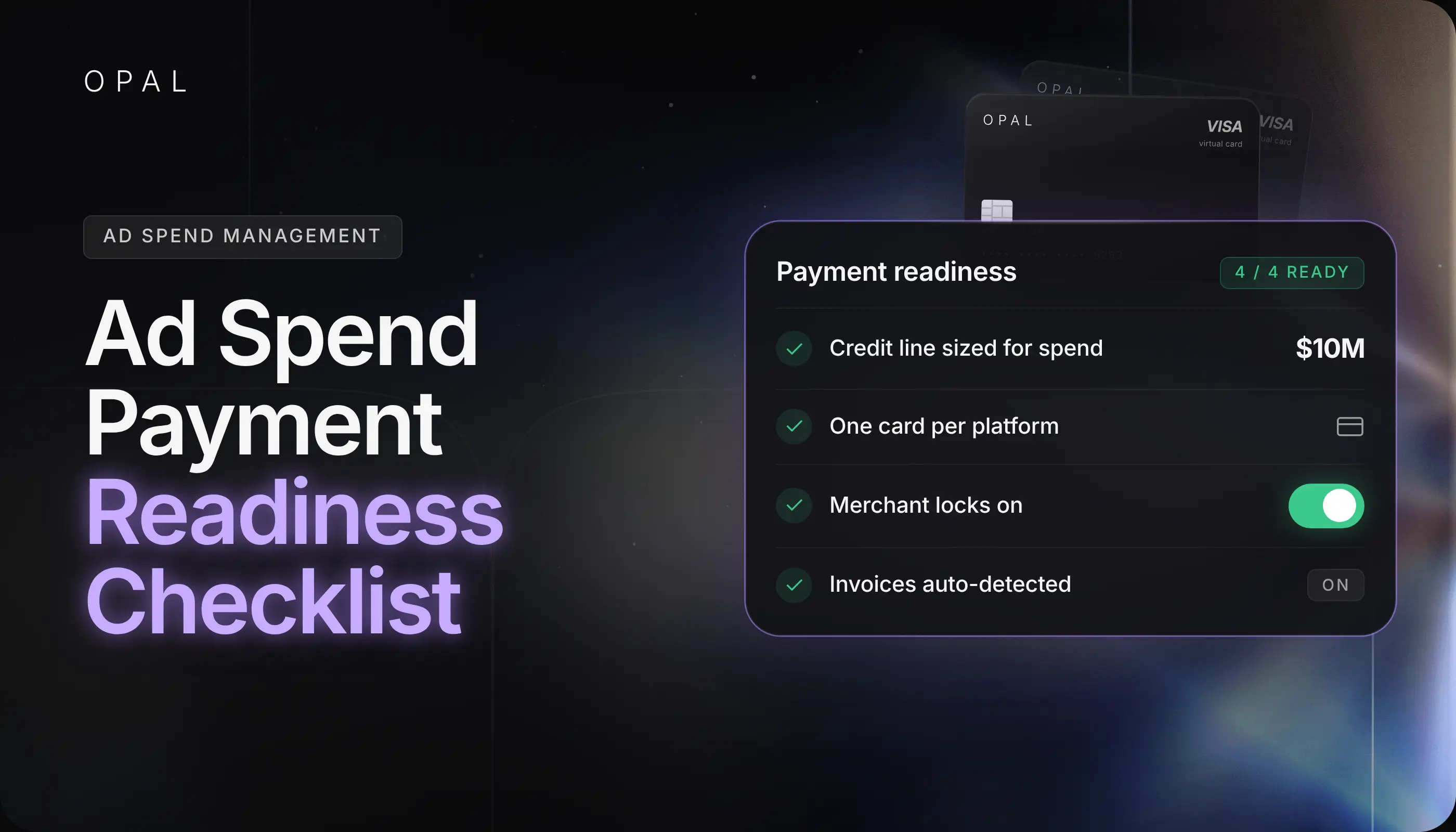
An ad spend payment readiness checklist is a set of payment checks an agency runs before raising Meta or Google Ads budgets, so the card behind each ad account can carry larger and more frequent charges.
The reliable way to run it is to name an owner for every account's payments, size card capacity to the new spend, map each ad account to its card, and settle thresholds, alerts, contacts, and a backup before the new budgets go live.
Agencies, media buyers, and growth teams feel this most when a launch or a new client lifts spend on Meta (Facebook and Instagram) and Google Ads (Search, Shopping, and Performance Max) in the same week.
Both platforms charge card-paying accounts automatically when spend reaches a billing threshold or on a set billing date, and each charge reaches the card issuer as a separate approval request.
A budget increase changes the size and pace of those requests overnight, while card limits, issuer rules, and team habits stay where they were.
In this article, you'll learn how to run each check, from payment ownership to capacity math and threshold reviews. You'll also see which alerts, contacts, and backups to set up, and what Google Ads does when a charge fails.
Key Takeaways
A budget increase raises both the size and the number of card charges, so a card that cleared last month's spend can decline this month's.
Google Ads can spend up to 2 times a campaign's average daily budget on a single day and up to 30.4 times it in a month, so card capacity belongs at those ceilings rather than at the planned average.
Google raises payment thresholds automatically without emailing you, so someone on your team has to check Billing > Summary to know the charge size your card will see.
Google Ads support can't resolve a card decline, because the card issuer makes that decision, so your escalation path has to start with whoever manages the card relationship.
Google Ads accepts 1 backup credit or debit card at a time and charges it automatically when the primary payment method fails.
A shared register that ties every ad account to its card, limit, expiry date, owner, and backup turns a decline from an investigation into a lookup.
What Is an Ad Spend Payment Readiness Checklist?
The checklist is a pre-launch review of the payment side of a budget increase, done before the first decline rather than after it. It covers 6 areas: payment ownership, card capacity, account-to-card mapping, billing thresholds, alerts and contacts, and a plan for a failed charge.
Why Bigger Budgets Trip Card Declines
Card issuers judge each charge against more than the remaining credit line. Google's help page on resolving declined card payments lists an exceeded credit limit or single transaction limit, and an exceeded maximum number of charges per period, among the common reasons.
A budget increase presses on all of those at once, because each charge grows, charges arrive more often, and the monthly total climbs. Our breakdown of declined payment costs covers what follows for the campaign.
When to Run the Checklist
Run it whenever a planned change would push a card past the largest monthly total it has already cleared, such as a seasonal push, a new client, or a move from testing to scale.
Start at least a week ahead, because a higher limit, a lifted transaction rule, or a new card on an ad account can each take days to arrange.
Who Owns Payments, and Which Card Pays Each Account?
Every ad account needs one named person who can change its payment method and pay a balance, plus a deputy, and every account should point to a known card. Record both in a single register before spend goes up.
Name a Payment Owner and a Deputy
Open the user list on each Meta and Google Ads account and confirm who holds admin or billing access today.
The payment owner updates cards, retries charges, and pays any overdue balance, while the deputy covers weekends, time off, and launch days.
On client-owned accounts, also confirm who on the client side approves budget and can add a payment method, because an agency user may not have that access.
Build an Account-to-Card Register
Shared cards make every decline harder to trace, so give each ad account its own card where you can. Keep a shared sheet with one row per ad account and these columns:
|
Field |
Why it matters |
Where to find it |
Ad account ID and client |
Ties every charge to the right budget |
The account name and ID in Meta Ads Manager or Google Ads |
Card last 4 digits and limit |
Shows capacity at a glance |
Your card provider's dashboard |
Card expiry date |
Expired cards are a listed decline reason |
The card record |
Payment owner and deputy |
Says who acts on a decline |
Your team roster |
Backup payment method |
Says what pays if the primary fails |
Each account's billing settings |
Current billing threshold |
Sets the size of each charge |
Google Ads Billing > Summary; Meta Billing & payments |
How Much Card Capacity Does a Budget Increase Need?
You need enough available credit to cover the new spend for a full statement cycle at the platform's billing ceiling, checked card by card and in total. Size to the ceiling rather than the plan, because platforms can bill above a daily average on busy days.
Size Limits to Google's Billing Ceilings
Google's article "About average daily budgets" sets a daily spending limit of 2 times the average daily budget and a monthly limit of 30.4 times it, for most campaigns. Pacing evens out over a month, but your card sees each charge as it lands.
Say you plan to lift 3 client Google Ads accounts from $2,000 to $3,500 a day each, all on one card with a $250,000 limit.
Each account can now bill up to $319,200 across the 3, against $182,400 before the increase.
At an even $10,500 a day, the card reaches its limit around day 24 of a 30-day statement, and charges decline until the statement is paid.
Ask the Issuer the Right Questions
Contact your card provider with the new plan and ask 3 things: the single transaction limit, any cap on charges per day or month, and whether merchant blocks apply to advertising charges. If the math doesn't fit, raise the limit or split accounts across cards, as our entry on credit ceiling risk explains.
On a pay-in-full charge card, also confirm the bank account behind it covers the larger statement, since a failed statement debit can lock the card and stop every account on it.
How Do Billing Thresholds Change When Spend Goes Up?
Higher spend reaches the billing threshold sooner, so the account gets charged more often, and on Google the threshold itself can rise without notice. Check both numbers for each account before launch.
Count the Charges Your Card Will See
For example, say an account's threshold is $1,000 and its daily budget rises from $1,500 to $4,000. Charges go from 1 or 2 a day to about 4, and up to 8 on a day when Google spends twice the daily budget.
Over 30 days that is roughly 120 charges from one account, the volume an issuer's charge-count rule watches.
Find the Current Threshold in Google Ads
Google's article "About payment settings in Google Ads" says thresholds increase up to the highest threshold and that you "won't be emailed or notified" when that happens. To see the current figure, open Billing > Summary and read the Next automatic payment card, which shows the threshold amount and the potential date of the next charge. Some accounts can change it under Billing > Settings > How you pay > Edit threshold, a process our Google Ads threshold guide walks through.
Check Meta's Threshold the Same Way
Meta also bills card-paying ad accounts against a billing threshold, so the same rise in charge frequency applies.
Open Billing & payments for each ad account, copy the current threshold and card into your register, and repeat the charge count. Our Meta threshold explainer covers how that number moves as an account builds payment history.
Which Alerts and Escalation Contacts Should Be Ready Before Launch?
Set alerts at the card, the platform, and the team, and write down who calls whom when a charge fails. Without both, a night-time decline can wait until morning.
Turn On Alerts at Every Layer
Set up all 3 before the new budgets start:
-
Card: turn on the decline and large-transaction notifications your card provider offers, and route them to the payment owner and deputy.
-
Platform: make sure the payment owner is a user on each account who receives billing notifications.
-
Team: during launch week, the owner checks Billing > Summary in Google Ads each morning, which lists any declined payment with its date, amount, and reason when available.
Write the Escalation Path Before You Need It
Google's help page on declined card payments states that "Google Ads support can't help you with any declines because your credit card company or bank makes those decisions." Your first call on a decline goes to the card provider, not the platform.
List 4 contacts per client in the register: the card provider's support line, your payment owner and deputy, the client's budget approver, and the finance person who can fund a payment. Note each one's phone number and working hours.
What Happens If a Charge Fails After the Increase?
The issuer declines the charge, the ad platform records the failed payment, and delivery may stop until a payment goes through. A backup card and a short restart routine keep that pause brief.
Set Up a Backup Payment Method
Google's backup payment method guide explains that when the primary method fails because of insufficient funds, an expired card, or a declined transaction, Google automatically tries the backup.
You can keep 1 backup at a time, it must be a credit or debit card rather than a bank account, and it doesn't change your threshold or payment schedule.
To set it, go to Billing > Settings > Payment methods, open the card's Actions menu, and choose Set as backup payment method. On Meta, keep a second card ready to add in Billing & payments so the owner can switch methods fast.
Restart Delivery in the Right Order
Google's article "Resolve a declined payment in Google Ads" says ads "might stop running until your payment goes through," though some qualifying accounts keep running for a short period. Work through these steps to restart:
Open Billing > Summary to read the decline date, amount, and reason.
Contact the card provider to clear the block or raise the limit.
In Billing > Settings > Payment methods, select Fix it, retry the card or use a different payment method, and select Pay Now.
Note in the register what failed and what fixed it.
If the block persists, our Google decline troubleshooting guide goes reason by reason. Most fixes still start with the issuer.
Run Your Next Budget Increase on the Opal Card
Every check above gets easier when each ad account has its own card and the credit behind it fits advertising. We built Opal for that job.
See What Every Opal Account Includes
We provide the Opal card and unlimited virtual cards at no cost, so each client, ad account, platform, or campaign can have its own card with its own spending limit, expiration date, and merchant restrictions. Approvals and employee permissions sit in the same place, and you can export transaction reports by client.
Credit is sized on your advertising spend, not your bank balance, and we may periodically review your performance and offer a credit increase.
Eligible ad spend earns 1% cashback on credit accounts and up to 1.5% on pre-funded accounts, uncapped, and we confirm your rate at approval. There's no annual fee, personal guarantee, or hard credit check, and transactions sync to QuickBooks.
Check the Fit Before You Apply
You configure the cards, limits, and permissions. Opal is a pay-in-full charge card, so we debit the full statement balance on each monthly due date, and a failed payment may lock the card until the balance is repaid.
Opal serves U.S.-based businesses, and the cards work on supported advertising and media platforms, so most teams keep another card for general expenses.
Ad Pay is a separate product for Meta and Google invoices, with a 3% processing fee on Opal credit or 3.5% on a connected card, and it's currently open by waitlist.
Applying takes 2 to 3 minutes, and virtual cards usually arrive within 24 to 48 hours. Visit our agency solutions page, then apply from our site or book a demo.
Frequently Asked Questions (FAQs)
How Do I Prevent a Google Ads Card Decline When I Increase Budgets?
Confirm the card limit covers 30.4 times each campaign's new average daily budget for the month, ask the issuer about single transaction and charge-count limits, and check the payment threshold in Billing > Summary. Then add a backup credit or debit card, which Google charges automatically if the primary payment method is declined.
How Do I Prevent a Meta Ads Payment Decline Before Scaling Spend?
Give each Meta ad account its own card, size that card's limit to the new monthly spend with room for busy days, and tell the issuer to expect more frequent charges. Record the account's billing threshold from Billing & payments, and keep a second card ready so the payment owner can switch methods quickly if a charge fails.
Does Google Ads Tell You When Your Billing Threshold Goes Up?
No. Google's payment settings article says you won't be emailed or notified when your payment threshold increases. Check the Next automatic payment card under Billing > Summary before any budget increase and weekly afterward, because a higher threshold means larger individual charges that can run into a card's single transaction limit.
Can a Card Decline Even With Credit Still Available?
Yes. Issuers also apply single transaction limits, caps on the number of charges per period, and blocks on internet transactions, and Google lists each as a common reason for a declined credit card payment. A budget increase raises charge size and frequency together, so a card with room on its line can still refuse a charge.
How Far Ahead Should an Agency Run a Payment Readiness Check?
Start at least a week before new budgets go live. That leaves time for the card provider to raise a limit or adjust transaction rules and for new cards to be added to each ad account. Repeat the threshold and alert checks daily during the first week of higher spend, then weekly once charges settle.
Ad Spend Card: What It Is, Who Needs One, and How to Choose the Right One
Charge Card vs. Credit Card for High Ad Spend: What Actually Matters
How to Front Client Ad Spend Without Personal Liability