

Migrate Client Ad Accounts to Virtual Cards: A Staged Cutover and Rollback Plan

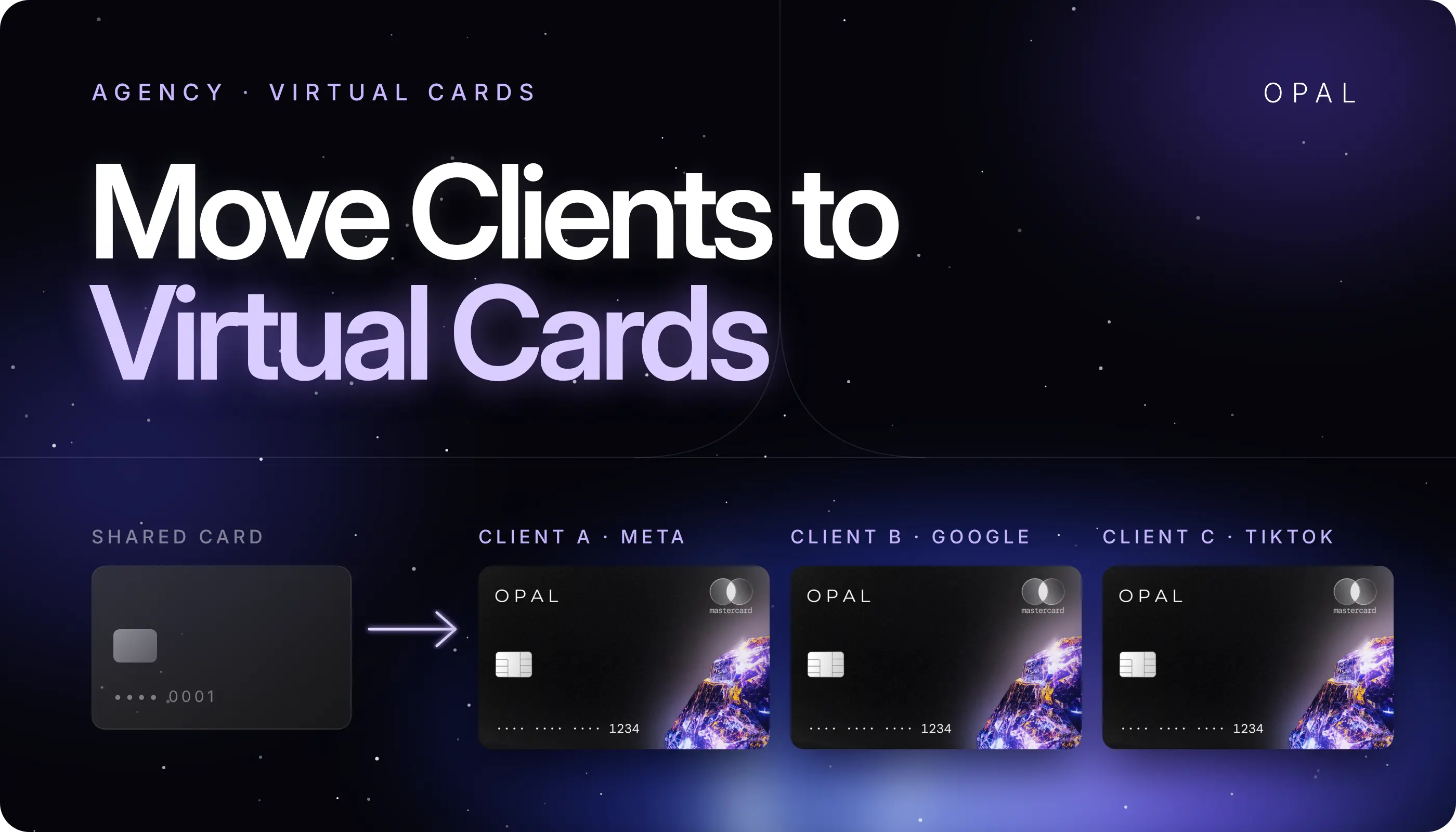
To migrate client ad accounts to virtual cards, an agency moves every advertising account it pays for off one shared company card and onto a dedicated card tied to a single client and platform, each with its own spending limit.
The safe way to do it is to inventory every account, map each one to a card, set limits and approval rules, then switch accounts over in small waves while the shared card stays open as a fallback until each wave passes its tests.
This plan is for U.S.-based agencies, media buyers, and finance teams reconciling client media across Meta (Facebook and Instagram), Google Ads, TikTok Ads, LinkedIn Ads, and Snapchat Ads. Most of these platforms charge a saved card automatically at a billing threshold or on a schedule, and the card's issuer approves or declines each charge on its own.
A shared card ties every client to one number and one credit line, yet leaving it is where campaigns get hurt, since one missed account or declined first charge can leave a live campaign with an unpaid balance.
In this article, you'll learn how to build an account inventory and card map, set limits for the month you switch, and move accounts in waves with a test for each. We'll also cover when to roll an account back and when to close the shared card.
Key Takeaways
A shared card should stay open and in good standing until the last migrated account has gone one full billing cycle without an advertising charge on it.
A migration inventory needs each account's billing type, recent charge sizes, and billing admin, not just the merchant names on the shared card's statement.
In the month you switch, a card's limit should cover the client's remaining approved budget plus any spend the platform has recorded but not yet billed.
Google Ads lets an account hold 1 backup card at a time, so the shared card can sit as backup during a cutover wave and come off once the new card's first charge clears.
A rollback reverses 1 account rather than a whole wave: the shared card goes back to primary, the outstanding balance gets paid, and the account moves to a later wave.
How Do You Migrate Client Ad Accounts to Virtual Cards Without Pausing Campaigns?
You avoid pauses by keeping a working payment method on every account throughout, and by counting no account as moved until a real charge clears on its new card. The work runs in 5 phases, each with an exit test that has to pass before the next one starts.
Keep the Shared Card as Your Safety Net
The shared card is the one payment method that already works on every account, so it stays open, paid, and ready until the end.
Closing it before every account has passed its tests removes your fallback. Our guide to separating client media explains why it has to go.
Run the Migration in 5 Phases
Each phase produces a document or result with a named owner, which keeps the migration out of a single person's head:
Phase |
What You Produce |
Exit Test |
|---|---|---|
1. Inventory |
A row for every ad account the shared card pays |
Every recent charge on the statement maps to a row |
2. Card map |
One planned card per client ad account |
Finance signs off on the card list and owners |
3. Limits and approvals |
A limit and an approver for every card |
Each limit traces back to a signed client budget |
4. Staged cutover |
Accounts switched in waves |
Each account's first charge clears on its new card |
5. Retirement |
Shared card removed everywhere and closed |
One full billing cycle with no advertising charges on it |
What Should Your Account Inventory Capture Before Cutover?
For each account, capture who can change billing, how the platform charges, and how large a normal charge is. The shared card's statement is where the list starts, not where it ends.
Pull From 3 Sources
Start with 90 days of the shared card's statement, which shows where the card charges today. Then open the billing settings of every ad account in each platform's business or manager account, since a saved card with no recent spend never appears on a statement. Finish with your active client contracts, so no client gets missed.
Record the Fields You'll Need on Cutover Day
Give every account a row with these fields before any card is issued:
Client, platform, and the ad account identifier (ID) exactly as the platform displays it
Billing type: threshold charges, scheduled charges, monthly invoicing, or prepaid funds
The size and date of the last 3 charges
Who holds billing admin rights, and whether they're available on cutover day
Launches and flight end dates in the next 30 days
Accounts on monthly invoicing or prepaid funds may not charge a card at all, so mark them and leave them out of the waves. Our article on billing activity by user shows how to confirm who has changed billing details on each platform.
How Should You Map Virtual Cards to Clients and Platforms?
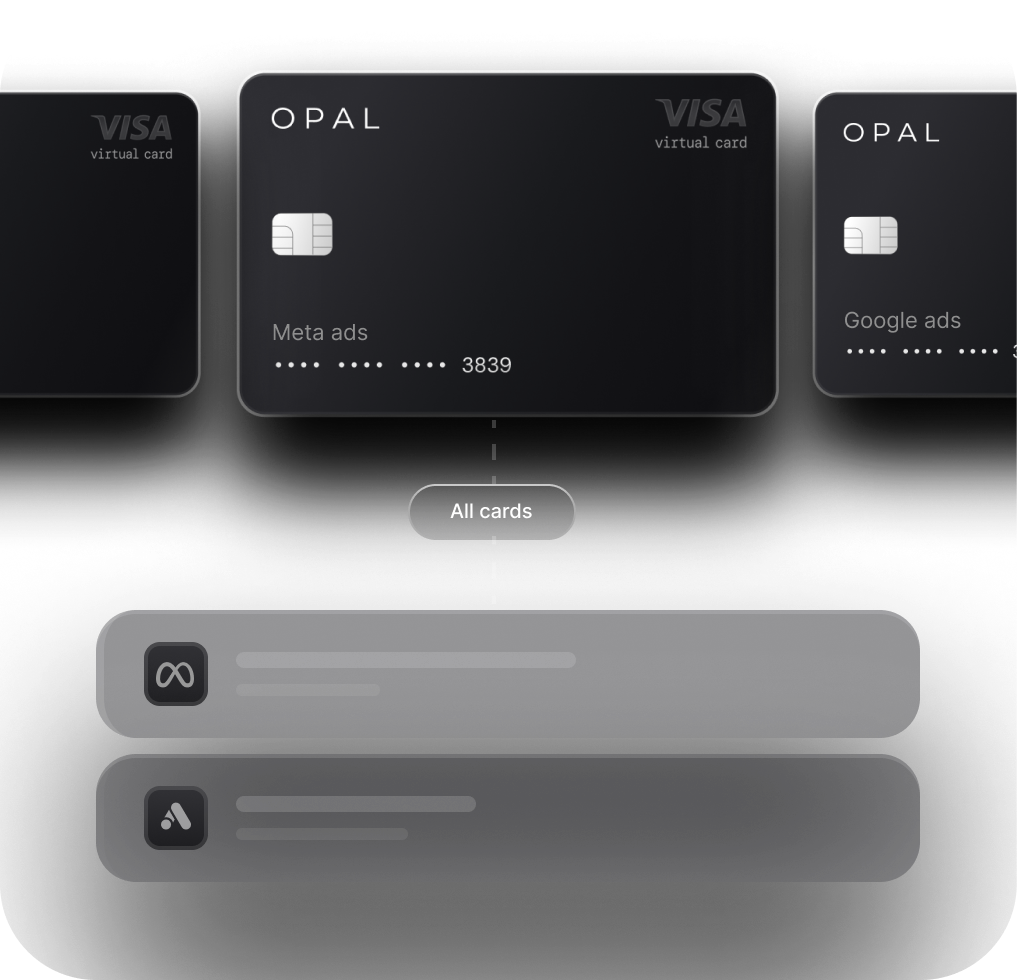
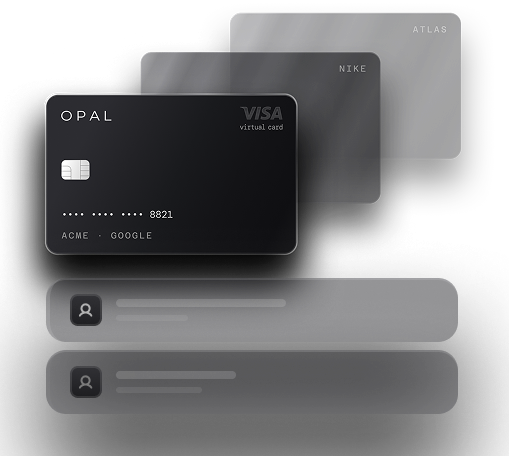
Map one card to each client ad account, which for most clients means one card per platform. Separate virtual cards for client ad accounts keep a decline, a replaced number, or a limit change contained to one client on one platform.
Build a Card Map Finance Can Sign Off
The card map is your inventory with 3 columns added: the planned card name, its owner, and its merchant restriction.
Lock each card to the platform it will pay before you attach it, because a lock that doesn't match the platform's billing descriptor will decline the first charge. Our guide to merchant-locked cards explains how descriptors affect a lock.
Count the Cards Before You Issue Them
Say you manage 8 clients: 5 run Google Ads and Meta, and 3 also run TikTok Ads, so the map needs (5 x 2) + (3 x 3) = 19 cards. Writing that number down first lets finance check the map against the inventory.
How Do You Set Monthly Ad Spend Limits per Client Before Cards Go Live?
Set each card's limit from the monthly budget the client signed for that platform, and name who approves increases, before the card touches any account. Our breakdown of the three limit types covers the framework, and the migration month adds one calculation.
Adjust the Limit for the Cutover Month
Read month-to-date spend from the platform rather than charges from the statement, because part of that spend hasn't been billed yet. It lands on whichever card is primary at the next charge.
For example, a client signs off on $30,000 a month for Meta. On the 12th, the platform shows $11,000 spent, and the shared card has been charged $9,000 of it.
The new card needs room for the remaining $19,000 plus the $2,000 spent but not yet billed, so its limit for the rest of the month is $21,000.
Name the Approver for the Migration Window
Limit requests pile up during a migration, since every first charge can expose a limit that's off. Pick one person in finance to approve increases on migrated cards until the final wave clears, and log each change with its reason.
How Do You Stage the Cutover in Waves?
Move accounts in waves your team can watch, starting with a single pilot account and grouping the rest by platform and risk. A new wave starts once every account in the previous one has had its first charge clear.
Choose a Pilot That Charges Often
The pilot proves your steps and tests, so pick an account that charges often and has no launch in the next 2 weeks. A once-a-month account makes a slow pilot, because you wait weeks to learn whether the switch worked.
Group the remaining accounts like this:
Wave |
Which Accounts |
Why This Order |
|---|---|---|
Pilot |
1 account that charges often, with no launch scheduled |
Proves the steps and tests with low stakes |
Wave 1 |
The rest of the pilot client, plus accounts on the same platform |
Your team repeats screens it just used |
Wave 2 |
Your highest-spend clients |
Moved early in the month while the process is fresh |
Wave 3 |
Accounts with launches, past billing holds, or unusual setups |
Moved after your rollback steps have been used |
Keep every wave out of the last 3 days of the month so no cutover charge lands in your close. Schedule each wave when the billing admin is available for 2 days.
Swap the Card Inside Each Platform
In Google Ads, open Billing, then Settings, select Add a payment method, and choose Set as primary payment method from the new card's Actions menu, as Google's guide to adding a payment method describes.
Google notes that a new card can show a temporary pre-authorization hold that drops within a week, so that hold isn't a passed test. Its backup payment method page allows 1 credit or debit card as backup, where the shared card sits during the wave.
In TikTok Ads Manager, go to Tools, then Settings, then Billing, and select + Add payment method before setting the new card as primary.
TikTok's payment method guide says Business Center accounts need an Admin, or a Standard member with the financial manager role, to make the change. For Meta, our virtual card setup guide covers attaching the card and setting an account spending limit.
How Do You Test Each Account After the Switch?
Run 3 tests on every account: the new card shows as primary the same day, its first real charge clears, and that charge matches the platform's billing record. An account counts as moved when all 3 pass.
Confirm the Card Is Primary the Same Day
Reopen the billing page an hour after the swap and check that the new card is marked primary, with the shared card set as backup or removed. Attach a screenshot to the account's row as evidence if a charge lands somewhere unexpected.
Watch the First Charge Clear
Check the new card's transactions daily until a charge from that platform posts, and check the shared card for the same period.
On Google Ads, a charge on the shared card means the backup caught a failure, since Google charges the backup on its own whenever the primary payment fails, which keeps ads running but hides the problem.
Match the Charge to the Billing Record
Download the platform's receipt for that charge, match its amount and date to the card transaction, and tag it to the client in your accounting export. If the amounts don't match, hold the next wave until you know why.
When Should You Roll Back an Account, and How?
Roll an account back when its new card can't be added, its first charge declines, or its charges can't be matched to the right client. A rollback reverses that one account and leaves the rest of the wave in place.
Agree on the Triggers Before the Pilot
Write the triggers and responses into the plan before the pilot, so nobody improvises during a declined charge:
Trigger |
Likely Cause |
Response |
|---|---|---|
The platform rejects the card when you add it |
Mistyped details, or a merchant restriction that doesn't match the platform |
Keep the shared card primary, check the card's settings, and retry the same day |
The first charge on the new card declines |
A limit below the unbilled spend, or a lock that doesn't match the billing descriptor |
Set the shared card back to primary, pay the balance, fix the card, and move the account to a later wave |
A charge lands on the shared card after the switch |
The new card isn't primary, or the backup caught a failure |
Check which card is primary and look for a decline on the new card |
A charge can't be matched to its account |
The card is attached to the wrong account |
Pause the wave and correct the card map before moving anything else |
Roll Back the Account, Not the Wave
When the issuer declines a charge, the ad platform records an outstanding balance and can pause delivery. Set the shared card back to primary on that account, settle the balance from the platform's billing page, and log the cause on the card map. Fix that cause before the account joins a later wave and repeats its tests.
Retire the Shared Card After the Last Wave Clears
Once every account passes its 3 tests, remove the shared card from each billing page, including Google Ads backup slots.
Keep it open and paid through one complete billing cycle that shows no advertising charges, then close it. A charge during that cycle means an account was missed, so give it a row and its own card.
Move Every Client Onto Its Own Opal Card
We built Opal for agencies paying for client media on Google, Meta, TikTok, LinkedIn, and other supported advertising and media platforms. We provide and operate the cards and client ad spend controls, and you configure how they map to your clients.
See What Every Opal Account Includes
Every account includes unlimited virtual cards at no cost, each with its own limit, merchant restrictions, and expiration date, plus spend approvals, team permissions, and QuickBooks sync.
Eligible ad spend earns 1% cashback on credit accounts and up to 1.5% on pre-funded accounts, uncapped, and we confirm your rate at approval. You won't pay an annual fee, sign a personal guarantee, or go through a hard credit check.
Check the Fit Before You Migrate
The Opal Card is a pay-in-full charge card: the full statement balance is debited automatically on each monthly due date, and if that payment can't be processed, the card may be locked.
Opal is for U.S.-based businesses, and the card works on supported advertising and media platforms, so most teams keep a general business card for everything else.
Ad Pay, which we offer separately by waitlist, covers Meta and Google invoices at a 3% processing fee on Opal credit (3.5% on a connected card).
Applying online takes 2 to 3 minutes, and virtual cards usually arrive 24 to 48 hours later, so apply a few days before your pilot. See how Opal for agencies handles client cards, then apply from our site or book a demo.
Frequently Asked Questions (FAQs)
How Long Does It Take to Move Client Ad Accounts Onto Virtual Cards?
Billing sets the pace more than setup does. An ad account counts as moved after its first real charge clears on the new card, so accounts that charge every few days finish quickly while monthly-billed accounts take a full cycle. The shared card then stays open one more cycle with no advertising charges.
What Happens If a New Virtual Card Is Declined During Cutover?
The card's issuer declines the charge, and the ad platform records an outstanding balance and may pause delivery until it is paid. Set the shared card back as primary on that account and pay the balance. Then fix the cause, usually a limit or merchant restriction, before the account rejoins a later wave.
Can I Keep the Old Shared Card as a Backup in Google Ads?
Yes, during the cutover. Google Ads lets an account hold 1 backup payment method at a time, limited to credit or debit cards, and bills it on its own when the primary payment fails. Remove the shared card once the new card's first charge clears, because a backup that keeps catching failed charges can hide a broken setup.
Should Each Client Get One Virtual Card or Separate Cards for Each Ad Account?
Separate cards for each ad account give the cleanest control, and for most clients that means one card per platform. A single client-level card is simpler, but a decline or replaced number then affects every platform that client runs on. Choose one rule and apply it across the card map.
How Do I Set Monthly Ad Spend Limits per Client on New Virtual Cards?
Start from the monthly budget the client signed for each platform and set the card's limit from that figure. In the month you switch, use the remaining budget plus any spend the platform has recorded but not yet billed. Record who approves increases, so buyers know whom to ask.
5 Best Virtual Business Cards for Ad Spend in 2026

Virtual Cards for Ad Spend: How Agencies and Media Buyers Should Set Them Up

Virtual Cards for Business: What They Are and How They Work