

Virtual Cards With Spending Limits: How to Set Up Cards and Permissions for Every Media Buyer


Virtual cards with spending limits are separate card numbers issued from one business account, each with its own ceiling, merchant rule, and named owner, so any charge above the ceiling is declined before it posts.
The reliable way to set them up for a media team is to decide what each role may do first, then issue every buyer cards for the client ad accounts they run and size each limit to the budget that client approved.
Agencies, ecommerce brands, and in-house growth teams look for virtual cards for marketing teams once more than one person spends.
Meta (Facebook and Instagram), Google Ads, TikTok Ads, LinkedIn Ads, and Snapchat Ads charge a stored card automatically, typically once costs cross a billing threshold or a billing period ends, and each runs its own user roles.
Those roles govern who edits a campaign but not what a card will pay, so spend authority has to be designed twice.
In this article, you'll learn how to map card and platform permissions to each role and size a buyer's limits from the budgets they manage. You'll also work through 4 agency scenarios, from a new hire's first day to a freelancer's fixed flight.
Key Takeaways
Virtual cards with spending limits enforce a budget at authorization, so a charge above a card's ceiling is declined instead of surfacing on next month's statement.
A media buyer's total spending authority is the sum of the limits on the cards they own, which turns trust into a number you set and review.
Spending on a card, changing a card's limit, and adding a payment method inside an ad platform are 3 separate rights, and each needs a named owner.
Google Ads lets Standard users edit campaigns but reserves adding or editing forms of payment for its Admin and Billing access levels, so buyers can run accounts without payment rights.
TikTok Business Center ties managing payment methods and paying invoices to its Finance Manager role, which keeps billing with your finance team.
A freelancer's card should carry an expiration date and a total limit that match the flight, so access ends on schedule even if nobody remembers to close it.
What Are Virtual Cards With Spending Limits, and Why Does Each Media Buyer Need Their Own?
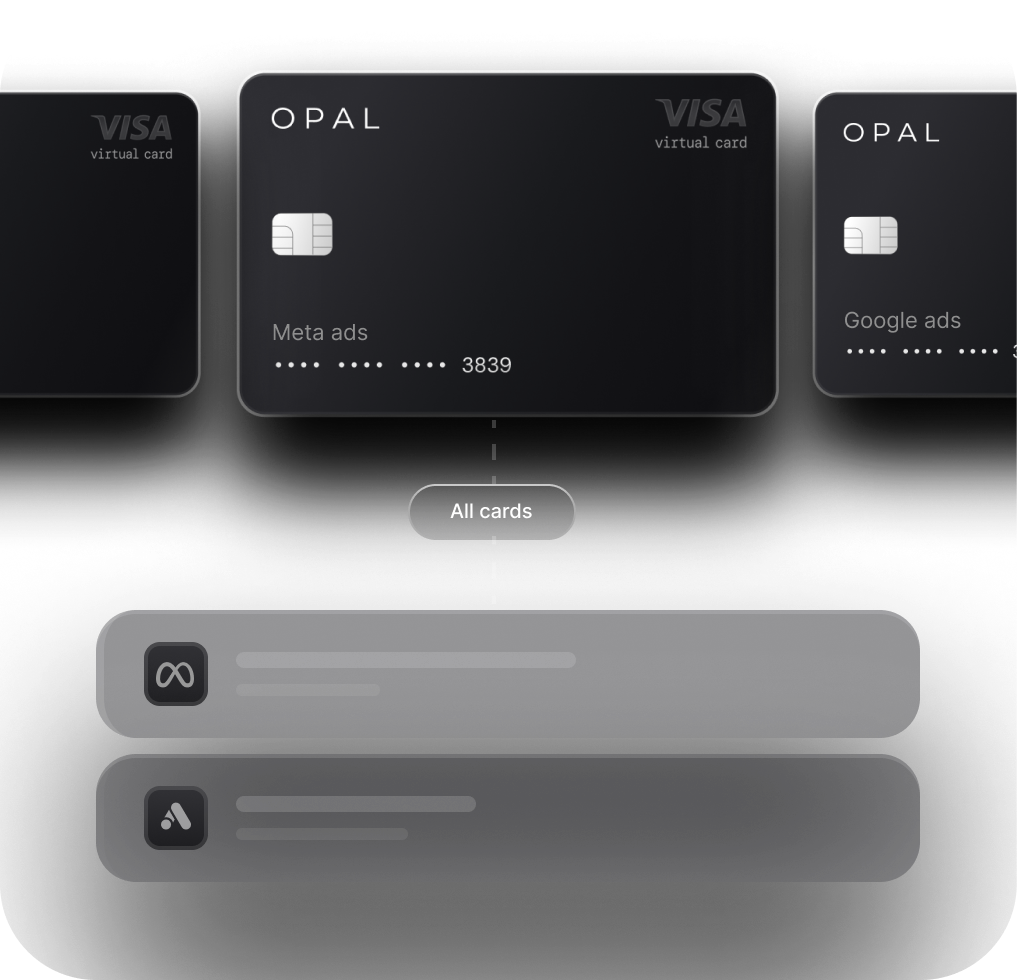
A virtual card with a spending limit is a card number that refuses any charge above a ceiling you set, issued per client, platform, or person. Giving each media buyer their own cards turns their spend authority into figures finance can read.
Treat a Buyer's Limit as the Sum of Their Cards
On a shared card, a buyer's real limit is whatever credit is left when they hit publish, and every other buyer draws on the same pool. Once each buyer owns cards, add up the card limits in their name and you have the most they can commit before someone more senior steps in.
That total is the figure you approve when you hire, promote, or hand someone a new client. It also answers a client who asks who controls their budget, because owner and limit sit on the same record.
Issue Cards per Ad Account and Name the Buyer as Owner
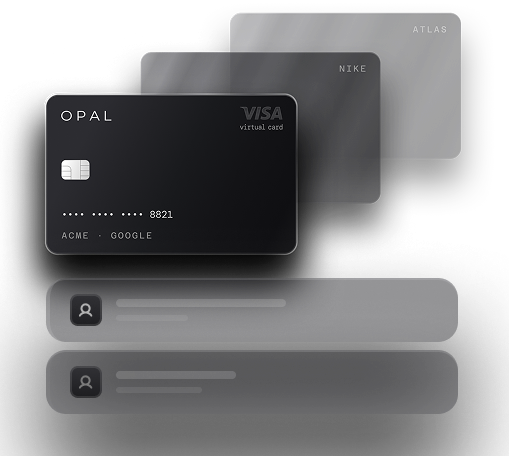
The card still follows the money. Issue one card per client ad account a buyer runs and record the buyer as owner, rather than one card that pays for every client they touch. A buyer-only card suits spend no client approved, such as test accounts, and our guide to card naming and structure covers the fields that keep cards readable at month end.
Which Permissions Should Each Role on a Media Team Hold?
Give spending rights to the people who run campaigns, issuing and limit rights to the people who answer for client budgets, and payment-method rights to finance. The matrix below turns that rule into a default you can adapt to your own titles.
Map Employee Ad Spend Permissions in a Matrix
Here is a default for an agency with a finance lead, account directors, and several buyers:
Role |
Spend on cards |
Issue or freeze cards |
Change card limits |
View transactions |
Ad platform role |
|---|---|---|---|---|---|
Agency owner |
Rarely |
Issue and freeze |
Any card |
All cards |
Admin |
Finance or operations lead |
No |
Issue and freeze |
Any card |
All cards |
Admin or billing role |
Account director |
No |
Freeze |
Approves requests for their clients |
Their clients' cards |
Campaign editing on their clients |
Senior media buyer |
Own cards |
Freeze own cards |
Within a written band |
Own cards |
Campaign editing, no payment rights |
Media buyer |
Own cards |
Freeze own cards |
Requests only |
Own cards |
Campaign editing, no payment rights |
Freelancer or contractor |
Own flight card |
No |
No |
Own card |
Campaign editing with an end date |
Separate the Person Who Spends From the Person Who Sets the Ceiling
The matrix is built so that nobody both spends on a card and holds sole say over its ceiling. That is the core of media buyer spending controls, because a limit the spender can raise alone is a formality.
Freeze rights work the opposite way. Letting a buyer freeze their own card costs nothing and stops damage fast when a number leaks, so hand that right out widely. For keeping owners out of routine approvals, read our piece on buyer permissions without micromanaging.
How Do You Match Card Permissions to Ad Platform Access?
Give buyers campaign-editing roles in each ad platform and keep the right to add or change payment methods with finance. A card then reaches an ad account through someone accountable for paying it.
Set Google Ads Access Levels by Job
Google's access level guide lists 5 levels: Email-only, Billing, Read-only, Standard, and Admin. Standard users can edit campaigns, but adding or editing forms of payment on the payments profile is reserved for Billing and Admin users. That maps onto the matrix, with buyers on Standard, finance on Billing, and owners or operations leads on Admin.
One gap is worth knowing. The same table lets Standard users make a payment and change the billing threshold on postpay accounts, so a buyer can alter how often the card is charged, and the card limit stays the backstop.
Keep TikTok Finance Roles With Your Finance Team
TikTok Business Center separates member roles from finance roles. According to TikTok's Business Center roles page, Standard members manage only the assets they are assigned, while Finance Manager and Finance Analyst are added on top of Admin access. Managing payment methods and paying invoices requires Finance Manager, and a Finance Analyst can view and download transactions and invoices.
In practice, buyers sit as Standard members on their clients' ad accounts, and your controller holds Admin with Finance Manager added. Because finance roles ride on Admin access, keep that list short. Our guide to billing activity by user covers tracing who changed what in each account.
How Do You Size a Media Buyer's Individual Card Limits?
Set each card's limit from the client budget it pays for, add headroom for billing timing, and treat the total across a buyer's cards as their spending authority. Then write down who can change those figures.
Set Individual Card Spending Limits From the Client Book
Say a buyer runs 3 accounts: Client A on Meta at $40,000 a month, Client A on Google Ads at $25,000, and Client B on TikTok Ads at $15,000. Their approved spend is $80,000. Example limits of $46,000, $29,000, and $17,000 add $12,000 of headroom for late-month threshold charges, for a total spending authority of $92,000.
That $92,000 is the number to approve against the buyer's experience. Headroom depends on each platform's billing cadence, and our explainer on card controls at authorization shows why a ceiling set exactly at budget tends to decline on a strong day.
Write a Limit-Change Policy by Seniority
Limits move, so decide in advance who moves them. A workable policy has buyers request every change, lets senior buyers raise their own cards by an agreed percentage between reviews, sends anything larger to the account director, and needs finance sign-off for new cards.
Review each buyer's total monthly, and share our note on how card limits work with newer buyers. A buyer whose cards keep reaching their limits needs a budget conversation with the client before anyone approves an increase.
What Does This Setup Look Like in Real Agency Scenarios?
Permission changes cluster around a few recurring events. Each of these 4 has a card-level answer.
Onboard a New Buyer in One Sitting
Work through these steps on the buyer's first day:
Add them to each client ad account they will run, with campaign editing and no payment rights.
Issue one card per ad account, named for the client and platform, with the buyer as owner.
Set each limit from the client's approved budget plus your policy's headroom.
Have finance attach each card in the ad platform, so the buyer never handles the full number.
Record the buyer's total authority in your roster next to their start date.
Split One Client Between 2 Buyers
When 2 buyers share a client, split the cards along the ad accounts each one runs. If one owns Meta and the other owns Google Ads, each holds the card for their platform. If both work inside the same ad account, keep one card on it owned by the account lead, and use the platform's change history to see who made each edit.
Give a Freelancer a Card That Ends With the Flight
Say a freelancer runs a 6-week TikTok Ads launch with a $30,000 budget. Issue one card for that ad account with a total limit equal to the flight budget instead of a monthly limit that resets, and set its expiration date to the flight's last day. Add the freelancer as a Standard member on that ad account alone, with the end date in your roster.
When the flight closes, the card stops working on schedule. Remove platform access the same day to close the rest.
Cover a Buyer on Leave Without Sharing Card Numbers
When a buyer goes on leave, keep the cards on each ad account and change who answers for them instead of passing card details around. Freeze any card the cover will not need, assign the covering buyer the rest with start and end dates in your roster, and grant platform access that expires when the original buyer returns.
How Often Should You Review Buyer Cards and Permissions?
Review card owners, limits, and platform roles monthly and whenever someone joins, leaves, or changes jobs. Agency virtual card management holds up when cards, roster, and platform user lists agree.
Reconcile Card Owners Against Your Roster
Export active cards with owners and limits, and compare them with your roster and platform user lists. Flag any card whose owner has left, any limit above that role's band, and any buyer holding payment rights in a platform, and fix each before month end.
Rerun the Matrix When a Job Changes
A promotion or a new client changes more than a title. Walk the person's new row in the matrix, adjust their card limits and platform roles to match, and update their total authority in the roster that day.
Give Every Media Buyer Their Own Opal Cards
We built Opal for teams that put ad platform charges on cards and want each person's spend authority written onto the card itself. We provide and run the card program, and you configure the cards, limits, and permissions.
What We Provide for Your Media Team
Every Opal account includes unlimited virtual cards, free of any per-card charge, for any client, campaign, employee, or advertising platform.
Each card gets a spending limit, merchant restrictions, and an expiration date of its own, and you set approvals and employee permissions. Finance gets card-level spend visibility for every client, plus transaction exports and a QuickBooks sync.
Eligible ad spend earns up to 1.5% cashback. The annual fee is $0, and we ask for no personal guarantee and run no hard credit check.
Check Where the Card Fits
Opal is a pay-in-full charge card. We debit the full statement balance automatically on its monthly due date, and if that payment fails, we can lock the card until the full balance clears. Card use is limited to supported advertising and media platforms.
We accept U.S.-based businesses, and our separate Ad Pay product for Meta and Google invoices has a waitlist and a processing fee of 3% on Opal credit or 3.5% on another card.
Virtual cards are usually issued within 24 to 48 hours of an application that takes 2 to 3 minutes. See how Opal for media buyers fits your team, then apply from our site or book a demo.
Frequently Asked Questions (FAQs)
Can Each Employee Have Their Own Virtual Card With a Spending Limit?
Yes. On Opal, you can issue dedicated virtual cards to individual employees, each set with its own limit, allowed merchants, expiration date, and permissions. For media buyers, a common setup is one card per client ad account they run, with the buyer as owner, so each person's authority is the sum of their card limits.
What Happens When a Media Buyer's Card Reaches Its Limit?
The card issuer declines any charge that would take the card past its limit, so nothing posts above the ceiling. The ad platform then records a failed payment and may hold the account or pause delivery until a payment clears. Size limits with headroom for billing timing, and route increase requests to your named approver.
Should Media Buyers Have Billing Access in Google Ads?
Usually not. Google Ads Standard access lets a buyer edit campaigns, while adding or editing forms of payment is reserved for Billing and Admin users. Giving buyers Standard and finance Billing keeps card changes with the people who pay the bill. Standard users can still adjust postpay billing thresholds, so card limits remain the backstop.
Can 2 Media Buyers Share One Virtual Card?
They can, but the card owner then stops telling you who was responsible for each charge. Share a card only when both buyers work inside the same ad account. In that case, assign the card to the account lead, record both buyers in your roster, and use the platform's change history to see who made each edit.
How Should a Freelancer's Card Access Differ From an Employee's?
Give a freelancer one card per ad account they run, with a total limit equal to the flight budget and an expiration date on the last day of the work. Pair it with platform access that carries the same end date. When the engagement ends, the card stops on schedule, and nothing depends on someone remembering to close it.
What Permissions Should a Bookkeeper Have on Ad Spend Cards?
A bookkeeper needs to view every card's transactions and run exports, with no right to spend, issue cards, or change limits. In TikTok Business Center, finance roles sit on top of Admin access, so decide deliberately whether a bookkeeper needs a Finance Analyst seat there or can work from your card exports instead.
5 Best Virtual Business Cards for Ad Spend in 2026

Virtual Cards for Ad Spend: How Agencies and Media Buyers Should Set Them Up
Virtual Cards for Business: What They Are and How They Work